Problems with IBM hardware?! Open a call directly without calling to first line :)
http://bit.ly/bjvWA8
2010/06/16

2010/03/29
Firefox direct link if you are living in EU or Belgium
Don't you hate it when you want to install firefox on a windows 2003 server just to download some binairies? Here is a fast link for you guys so you don't have to accept 30 mirrors before the auto-redirect page finally hits the same page
Belnet Firefox
Belnet Firefox
2010/02/13
Somethings to think about when upgrading to vSphere 4
The main things to think about:
Upgrading from vSphere 4 is supposed to be a walk in the park. I prefer to scratch all the ESX hosts instead of hoping that the update process works 100% as it should do. vCenter upgrading is a next next finnish process (hopefully). One thing to remember. If you are scratching your vCenter, leave your old vCenter running until all your old hosts are migrated to ESX 4.0. Because the licensing system has changed, you will need to keep the license server running on you old vCenter and configure the vCenter vSphere version to delegate the work for the old ESX hosts to the old license server (Administration > VirtualCenter Management Server Configuration > License Server. ). You could also install an old license server on your new vCenter and transfer the licenses. However this is not worth the effort because once all the hosts are "upgraded" you don't need it anymore. Also a small remark here, if you have tools that intergrate with vCenter, you will need an own game plan. For example, VMware view is tightly integrated with vCenter
If you scratched your vCenter, remember that you will have to move all the settings from vCenter old to vCenter new. I'm talking about
Don't kill if me if this list is incomplete
Next you will need to disconnect and remove the ESX from the original cluster and add the hosts to the new cluster. This will not stop the running VM's on your ESX hosts. However disabling HA might be a good thing while moving hosts around. If you don't disable DRS you will keep your resource pools but they will get ugly at the other site. So make sure you have overcapacity.
Some things you should know about your ESX hosts before you scratch them.
Writing down all the settings/configuration before you begin helps. You can upgrade the hosts one by one following your scheme
and watch out for theses ..
Before you add your scratched hosts to the cluster MAKE SURE THE NETWORK IS CORRECTLY SETUP. You don't want VMs to end in vlans that are not connected to the right uplinks. I also love to ping and vmkping from the console. Also check that you can lookup your hostname, fqdn and your reverse ip.
Some fun extra's here :
Ofcourse our job wouldn't be any fun if you didn't have troubles. Before you start check that all the VMs are using hardware 4/vmware tools. You cannot vmotion between 3.5 and 4 if the hardware is version 3. So before you do anything, check all the vms version and tools. (I learned the hard way that upgrading from 3 to 7 when everything is transfered can be a bummer).
While moving a vm, I also encoutered this nice error. "Troubleshooting Migration compatibility error: Virtual machine has CPU and/or memory affinities configured, preventing VMotion". Disabling the cpu affinity in the advanced settings of the VM didn't fix the issue. The VM was still starting on the wrong host. Removing the following out the vmx manually fixed the problem.
sched.cpu.affinity = "0"
sched.cpu.htsharing = "any"
sched.mem.affinity = "all"
Ofcourse this will require downtime of the VM :(
Installing an rpm via yum is possible. I always used rpm -Ivh but you can also use yum localinstall –disablerepo=* . This is nice when you are installing vmware tools on a redhat family VM and are using the vmware tools ISO (when you choose install guest tools in the menu).
PCoIP can frack up you VM's Resolution. We had a user that started a PCoIP session with a VM. We are not sure if the session was not cleanly shut down but when we connected with the console in vCenter our screen size was fracked. Rebooting the vm, didn't help. The only thing that worked was logging on with PCoIP and resize the screen with the PCoIP client.
Upgrading from vSphere 4 is supposed to be a walk in the park. I prefer to scratch all the ESX hosts instead of hoping that the update process works 100% as it should do. vCenter upgrading is a next next finnish process (hopefully). One thing to remember. If you are scratching your vCenter, leave your old vCenter running until all your old hosts are migrated to ESX 4.0. Because the licensing system has changed, you will need to keep the license server running on you old vCenter and configure the vCenter vSphere version to delegate the work for the old ESX hosts to the old license server (Administration > VirtualCenter Management Server Configuration > License Server. ). You could also install an old license server on your new vCenter and transfer the licenses. However this is not worth the effort because once all the hosts are "upgraded" you don't need it anymore. Also a small remark here, if you have tools that intergrate with vCenter, you will need an own game plan. For example, VMware view is tightly integrated with vCenter
If you scratched your vCenter, remember that you will have to move all the settings from vCenter old to vCenter new. I'm talking about
- VirtualCenter Management Server Configuration (Like smtp and snmp)
- Resource pool settings and cluster settings (HA - DRS - DPM). For example I have a rule that put the DB for vCenter and vCenter on the same hosts so they can communicate localy
- Virtual Machines and templates folders
- Alarms and automated tasks
- Permissions
- Advanced settings, although mostly you don't change these
- Copy sysprep from a to b. Just a reminder, it is under "[X]:\Documents and Settings\All Users\Application Data\VMware\VMware VirtualCenter\sysprep\"
Don't kill if me if this list is incomplete
Next you will need to disconnect and remove the ESX from the original cluster and add the hosts to the new cluster. This will not stop the running VM's on your ESX hosts. However disabling HA might be a good thing while moving hosts around. If you don't disable DRS you will keep your resource pools but they will get ugly at the other site. So make sure you have overcapacity.
Some things you should know about your ESX hosts before you scratch them.
- FQDN / IP / Subnet / Gateway / DNS / NTP server. You will need these settings while installing ESX. You also will need to know the mac address of the physical NIC that is being used for your service console + the vlan your service console is in
- Partitioning. If you have custom agents installed this is especially true. I like to oversize my ESX console a lot if the local disk are not being used. Just because I can. Here is an example "oversized" esx console
/dev/sdh9 4.9G 1.6G 3.1G 34% /
/dev/sdg1 1.1G 75M 952M 8% /boot
/dev/sdh6 2.0G 36M 1.8G 2% /home
/dev/sdh8 2.0G 88M 1.8G 5% /opt
/dev/sdh7 3.9G 72M 3.6G 2% /tmp
/dev/sdh5 3.9G 211M 3.5G 6% /var
/dev/sdh2 3.9G 74M 3.6G 2% /var/log
The boot partition was configured automatically. I also create a higher swap size (1600mb). Ow and remember if you had agents installed, you will have to reinstall them :) - Time zone
- Have a valid license key
- Make scripts or a clear layout how your virtual networking is done. Important settings to think about are how you NICs are bound to your vswitches. Write down the mac address so you can link mac address to vswitches. I have seen NIC numbering (vmnicx vs mac) being changed while scratching. Also check your port groups. They might overwrite you vswitch settings. For example, I like to put vMotion on a active/standby NIC configuration. I mostly overwrite this in the port group if i don't have a lot of physical NICs. Also make sure you have consistent port groups names!
- Know the firewall setup, it is there under advanced settings. For example you might need to open up the ssh client so that you can scp/ssh between hosts
Writing down all the settings/configuration before you begin helps. You can upgrade the hosts one by one following your scheme
and watch out for theses ..
- If you are able to disconnect the SAN, do so! If not check carefully that you don't overwrite a lun while installing
- On HS ibm blades, you will need to enable the vt instructions and the no execution disable bit in the bios. You'll find it under advanced settings -> cpu
- Check if the local datastore is empty!
Before you add your scratched hosts to the cluster MAKE SURE THE NETWORK IS CORRECTLY SETUP. You don't want VMs to end in vlans that are not connected to the right uplinks. I also love to ping and vmkping from the console. Also check that you can lookup your hostname, fqdn and your reverse ip.
Some fun extra's here :
Ofcourse our job wouldn't be any fun if you didn't have troubles. Before you start check that all the VMs are using hardware 4/vmware tools. You cannot vmotion between 3.5 and 4 if the hardware is version 3. So before you do anything, check all the vms version and tools. (I learned the hard way that upgrading from 3 to 7 when everything is transfered can be a bummer).
While moving a vm, I also encoutered this nice error. "Troubleshooting Migration compatibility error: Virtual machine has CPU and/or memory affinities configured, preventing VMotion". Disabling the cpu affinity in the advanced settings of the VM didn't fix the issue. The VM was still starting on the wrong host. Removing the following out the vmx manually fixed the problem.
sched.cpu.affinity = "0"
sched.cpu.htsharing = "any"
sched.mem.affinity = "all"
Ofcourse this will require downtime of the VM :(
Installing an rpm via yum is possible. I always used rpm -Ivh but you can also use yum localinstall –disablerepo=*
PCoIP can frack up you VM's Resolution. We had a user that started a PCoIP session with a VM. We are not sure if the session was not cleanly shut down but when we connected with the console in vCenter our screen size was fracked. Rebooting the vm, didn't help. The only thing that worked was logging on with PCoIP and resize the screen with the PCoIP client.
2010/02/05
Vyatta Demo VMware Router
You know the drill. You need to set up a mobile datacenter that you need to move around from one place to another. When you get on location they give you a single ethernet cable with dhcp on it to connect to the internet. Your mission:
-Have multiple VLANs and being able to create new vlans
-Connect those multiple VLANs
-Have internet on all your VM's
-Being able to plugin the demo rack anywhere without any modification.
Previously we had a "hardware" router. An IBM blade with centos and tg3 broadcom drivers doing simple forwarding. It's not to hard to set up but you'll get a ship load of extra services you don't need + you loose a blade just for routing.
The solution : vyatta. It is an open source router wanting to compete with the cisco cli. It's easy and it's free ... or at least the software is, not the documentation.
So how did we set up my VM:
-eth0 : An ethernet adapter E1000. Pushed it in vlan 4095. In vsphere this will just pass all the incoming packets on the vSwitch without removing the vlan tags, essentially creating a trunk between your vswitch and your vm
-eth1 : An ethernet adapter E1000. Pushed it in vlan 12. This vlan is presented as 1 port on one of our physicall switches. This is were you plugin you uplink
-2gb hard disk
Installing vyatta is simple. Download the live CD. Start with the cd. Login with root : vyatta. Once you are logged in you can execute
$ install-system
Follow the wizard and reboot. Congrats, you have a brand new virtual router
Login with vyatta and password vyatta after the reboot. I executed the following
$ configure
This will put you into vyatta configure modus... like configure t on cisco
$ set interfaces ethernet eth0 address 192.168.114.254/24
$ set interfaces ethernet eth0 vif 15 address 192.168.115.254/24
$ set interfaces ethernet eth0 vif 16 address 192.168.116.254/24
$ set interfaces ethernet eth1 address dhcp
Untagged traffic is handled by the first line. The other vlans (15 and 16) are configured with the second and third command. They essentially create a virtual adaptor on eth0. The vif attribute defines the vlan. The last command sets up dhcp on eth1
$ set system host-name vRouter
$ set system domain-name mo.ilnk
$ set system name-server 192.168.115.1
$ set service ssh
Set up host name and dns domain. Third command set the dns server. The last command enables ssh.
$ set service nat rule 1 source address 192.168.114.0/24
$ set service nat rule 1 outbound-interface eth1
$ set service nat rule 1 type masquerade
$ set service nat rule 2 source address 192.168.115.0/24
$ set service nat rule 2 outbound-interface eth1
$ set service nat rule 2 type masquerade
$ set service nat rule 3 source address 192.168.116.0/24
$ set service nat rule 3 outbound-interface eth1
$ set service nat rule 3 type masquerade
Set up 3 nat rules. The first line of each rule defines which source addresses should be nated. The second line defines the uplink. The third line sets up masquerading. This will transform each tcp/ip packet so that it all looks like the packets are comming from the input. Essentially masking you demo environment and allowing you to have internet anywhere in your vlans. Remember you'll need a rule per VLAN
$ run renew dhcp interface eth1
Run a dhcp renew on eth1, like doing dhclient eth1 on many linux boxes. This will also set default router if your dhcp anounces one
$ set service dhcp-server shared-network-name ETH0_16_POOL subnet 192.168.116.0/24 start 192.168.116.10 stop 192.168.116.200
$ set service dhcp-server shared-network-name ETH0_16_POOL subnet 192.168.116.0/24 default-router 192.168.116.254
$ set service dhcp-server shared-network-name ETH0_16_POOL subnet 192.168.116.0/24 dns-server 192.168.115.1
Defines a dhcp rule in vlan 16 so that you can plug and play. You can make more then one pool per vlan if you like. You define the vlan by defining the subnet
$ commit
$ save
$ exit
Commit is in essence put your work to run. Save is like copy run start on cisco. Save the running config you commited to the boot config so you can reboot
You don't need to set up a default gateway because you'll get it from your dhcp lease. However if you need to assign a static ip you can do it the same ways as you did on eth0. However you'll need the following command to setup a the default gateway in your router
$ set system gateway-address 192.0.2.99
Remember to commit and save ;)
Just for the fun of it, we love to sing bom vyatta at work
-Have multiple VLANs and being able to create new vlans
-Connect those multiple VLANs
-Have internet on all your VM's
-Being able to plugin the demo rack anywhere without any modification.
Previously we had a "hardware" router. An IBM blade with centos and tg3 broadcom drivers doing simple forwarding. It's not to hard to set up but you'll get a ship load of extra services you don't need + you loose a blade just for routing.
The solution : vyatta. It is an open source router wanting to compete with the cisco cli. It's easy and it's free ... or at least the software is, not the documentation.
So how did we set up my VM:
-eth0 : An ethernet adapter E1000. Pushed it in vlan 4095. In vsphere this will just pass all the incoming packets on the vSwitch without removing the vlan tags, essentially creating a trunk between your vswitch and your vm
-eth1 : An ethernet adapter E1000. Pushed it in vlan 12. This vlan is presented as 1 port on one of our physicall switches. This is were you plugin you uplink
-2gb hard disk
Installing vyatta is simple. Download the live CD. Start with the cd. Login with root : vyatta. Once you are logged in you can execute
$ install-system
Follow the wizard and reboot. Congrats, you have a brand new virtual router
Login with vyatta and password vyatta after the reboot. I executed the following
$ configure
This will put you into vyatta configure modus... like configure t on cisco
$ set interfaces ethernet eth0 address 192.168.114.254/24
$ set interfaces ethernet eth0 vif 15 address 192.168.115.254/24
$ set interfaces ethernet eth0 vif 16 address 192.168.116.254/24
$ set interfaces ethernet eth1 address dhcp
Untagged traffic is handled by the first line. The other vlans (15 and 16) are configured with the second and third command. They essentially create a virtual adaptor on eth0. The vif attribute defines the vlan. The last command sets up dhcp on eth1
$ set system host-name vRouter
$ set system domain-name mo.ilnk
$ set system name-server 192.168.115.1
$ set service ssh
Set up host name and dns domain. Third command set the dns server. The last command enables ssh.
$ set service nat rule 1 source address 192.168.114.0/24
$ set service nat rule 1 outbound-interface eth1
$ set service nat rule 1 type masquerade
$ set service nat rule 2 source address 192.168.115.0/24
$ set service nat rule 2 outbound-interface eth1
$ set service nat rule 2 type masquerade
$ set service nat rule 3 source address 192.168.116.0/24
$ set service nat rule 3 outbound-interface eth1
$ set service nat rule 3 type masquerade
Set up 3 nat rules. The first line of each rule defines which source addresses should be nated. The second line defines the uplink. The third line sets up masquerading. This will transform each tcp/ip packet so that it all looks like the packets are comming from the input. Essentially masking you demo environment and allowing you to have internet anywhere in your vlans. Remember you'll need a rule per VLAN
$ run renew dhcp interface eth1
Run a dhcp renew on eth1, like doing dhclient eth1 on many linux boxes. This will also set default router if your dhcp anounces one
$ set service dhcp-server shared-network-name ETH0_16_POOL subnet 192.168.116.0/24 start 192.168.116.10 stop 192.168.116.200
$ set service dhcp-server shared-network-name ETH0_16_POOL subnet 192.168.116.0/24 default-router 192.168.116.254
$ set service dhcp-server shared-network-name ETH0_16_POOL subnet 192.168.116.0/24 dns-server 192.168.115.1
Defines a dhcp rule in vlan 16 so that you can plug and play. You can make more then one pool per vlan if you like. You define the vlan by defining the subnet
$ commit
$ save
$ exit
Commit is in essence put your work to run. Save is like copy run start on cisco. Save the running config you commited to the boot config so you can reboot
You don't need to set up a default gateway because you'll get it from your dhcp lease. However if you need to assign a static ip you can do it the same ways as you did on eth0. However you'll need the following command to setup a the default gateway in your router
$ set system gateway-address 192.0.2.99
Remember to commit and save ;)
Just for the fun of it, we love to sing bom vyatta at work
2010/02/01
Ping loss with ESX 4.0
So a very short post here but for people out there and for myself as reference it might be handy.
Friday I was at a customer site having the problem that he lost 5 pings to virtual machines every now and then. Unrelated to other events, debugging it was a hell. What also was bizarre was the fact that we didn't have any loss on the network ( we checked statics with ethtool and on the switches). The packets were just delivered to late to the VM, which then ofcourse replied to late and caused a ping timeout (we saw this behavior with a network sniffer).
We start to analyse the variables in the game. What changed since the network problems occured. Well the SAN changed. Look further in the logs (/var/log/messages) revealed a multipathing problem (SATP,PSP and NMP warnings). What happened was that the client was migrating to a newer version of SVC and in effect replacing the nodes. Multipathing worked fine but the old nodes were still showing up as dead paths. Probably this path were fixed paths (because SVC likes fixed) and the ESX hypervisor was trying to jump back to this old paths. Rescanning the hba's or rebooting the ESX server solved the problem (for now?)
Friday I was at a customer site having the problem that he lost 5 pings to virtual machines every now and then. Unrelated to other events, debugging it was a hell. What also was bizarre was the fact that we didn't have any loss on the network ( we checked statics with ethtool and on the switches). The packets were just delivered to late to the VM, which then ofcourse replied to late and caused a ping timeout (we saw this behavior with a network sniffer).
We start to analyse the variables in the game. What changed since the network problems occured. Well the SAN changed. Look further in the logs (/var/log/messages) revealed a multipathing problem (SATP,PSP and NMP warnings). What happened was that the client was migrating to a newer version of SVC and in effect replacing the nodes. Multipathing worked fine but the old nodes were still showing up as dead paths. Probably this path were fixed paths (because SVC likes fixed) and the ESX hypervisor was trying to jump back to this old paths. Rescanning the hba's or rebooting the ESX server solved the problem (for now?)
2009/12/16
When vCenter updates go wrong...
Yesterday I tried to update our demo vCenter to the new vCenter 4u1 version. Normally updating vCenter is a next next finish process. Except of course this time ;)
When I tried to install the update it started complaining about the already installed components. This shouldn't be a problem because the installer can detect the components and update them. I clicked next, next and the installer seem to install ok. After some time the installer stopped and stated something like "Installer interrupted , update not successfully". No worries I thought, I'll just run it again. Well same problem again...
Trying to restart the service failed. Running vpxd with the -s parameter showed that there was something corrupt in the LDAP installation. Still okay i thought. Lets remove vcenter and reinstall it again because all the data is in the database anyway.
Removing via add/remove software = a no go. Rerunning the installer and choosing the remove option = a no go. Both error-ed with the same message "Install was interrupted, removal was not successful".
So I was trapped in not being able to remove the software or to reinstall. Googling the errors did not yield any solutions so only one thing left. Lets remove as much from the installation so that the installer doesn't know about "the current" installation.
First was deleting enough registry entries
-Following http://support.microsoft.com/kb/314481, I deleted the keys related to vcenter to remove the entry in add/remove programs.
-After removing the keys described in the kb, the entry was still in add/remove programs so I found some keys in HKEY_LOCAL_MACHINE\SOFTWARE\Microsoft\Windows\CurrentVersion\Installer\UserData\S-1-5-18\Products related to vCenter. Removing them removed the add/remove programs entries.
Rerunning the installer still gave me errors about the webapp being active and the java already being installed but no longer available so I continued
I removed the following software
-All vmware related software (orchestrator, update manager, ...) except for the vmware tools and ofcouse vcenter
-Sun java
-Adam database
I removed all entries in
HKEY_LOCAL_MACHINE\Software\Vmware, Inc.\VMware VirtualCenter
Finally i deleted everything in "program files\Vmware" and "Documents and settings\all users\application data\vmware" related to virtual center (virtual infrastructure).
Reinstalling by using the same database worked as a jiffy. Afterwards I could login on vCenter. My hosts where in disconnected state. I reconnected the hosts one by one to the cluster and reconfigured HA on each of them and bang, we were back up and running.
When I tried to install the update it started complaining about the already installed components. This shouldn't be a problem because the installer can detect the components and update them. I clicked next, next and the installer seem to install ok. After some time the installer stopped and stated something like "Installer interrupted , update not successfully". No worries I thought, I'll just run it again. Well same problem again...
Trying to restart the service failed. Running vpxd with the -s parameter showed that there was something corrupt in the LDAP installation. Still okay i thought. Lets remove vcenter and reinstall it again because all the data is in the database anyway.
Removing via add/remove software = a no go. Rerunning the installer and choosing the remove option = a no go. Both error-ed with the same message "Install was interrupted, removal was not successful".
So I was trapped in not being able to remove the software or to reinstall. Googling the errors did not yield any solutions so only one thing left. Lets remove as much from the installation so that the installer doesn't know about "the current" installation.
First was deleting enough registry entries
-Following http://support.microsoft.com/kb/314481, I deleted the keys related to vcenter to remove the entry in add/remove programs.
-After removing the keys described in the kb, the entry was still in add/remove programs so I found some keys in HKEY_LOCAL_MACHINE\SOFTWARE\Microsoft\Windows\CurrentVersion\Installer\UserData\S-1-5-18\Products related to vCenter. Removing them removed the add/remove programs entries.
Rerunning the installer still gave me errors about the webapp being active and the java already being installed but no longer available so I continued
I removed the following software
-All vmware related software (orchestrator, update manager, ...) except for the vmware tools and ofcouse vcenter
-Sun java
-Adam database
I removed all entries in
HKEY_LOCAL_MACHINE\Software\Vmware, Inc.\VMware VirtualCenter
Finally i deleted everything in "program files\Vmware" and "Documents and settings\all users\application data\vmware" related to virtual center (virtual infrastructure).
Reinstalling by using the same database worked as a jiffy. Afterwards I could login on vCenter. My hosts where in disconnected state. I reconnected the hosts one by one to the cluster and reconfigured HA on each of them and bang, we were back up and running.
2009/11/24
HS22 + BOFM ... oh boy
First of all, I'm going to assume u know what blades are
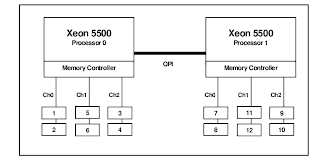
For you guys out there that aren't IBM believers (as I am), HS22 is the latest Intel blade available for IBM bladecenters. They are using the new Nehalem processors and are the successors of the HS21 (xm) series. They use smaller memory dimms so that you can add 12 dimms per blade (allowing you to add 96 gb per blade). Warning though, you'll need to fill the 2 sockets because the first 6 slots are managed by mem-controller socket 1 and the 6 last slot by the mem-controller on socket 2. This means the HS22 are in effect NUMA servers. On the image below you'll also see that there are 3 channels per memory controller. One remark, the more memory you'll put on each channel the slower it will run (1 dimm per channel = 1333mhz max , 2 dimms per channel = 1066mhz max). So balance your memory between your channels/sockets!!!!
So enough about the HS22. I have been implementing BOFM in combination with Boot from san (BFS) on HS22. Boot from SAN does what it says. You no longer have internal disks but you are booting from a LUN. BOFM (Bladecenter Open Fabric Manager) is a technology that lets you virtualize "networks ids". You can put virtual mac address and virtual wwpn on blades. This is defined on a chassis slot level. Meaning that you can pull a blade out and put a spare blade in and it will inherit the old virtual address from the old bade. What is even more powerful, you can configure BFS in BOFM too. Meaning you can pull a blade out, put the same type in and it will boot exactly like the old blade as if it were a clone.
So how do you start? Update, upgrade whatever component is involved :
-AMM latest firmware level
-HBA on the latest firmware level (Qlogic in my case)
-uEFI on the latest firmware level (the new and improved BIOS)
-IMM on the latest firmware level (the new and improved bmc+cKVM)
Be sure they are on the latest level. IBM is releasing a lot of these firmwares and they seem to include BOFM fixes all the time. For example if your qlogic bios adapter is constantly being disabled (effect: disabled BFS), you'll need to update from 1.43 to 1.46.
Next up create an initial configuration in the AMM (Blade > BOFM > Initial configuration). With the bladecenter H I'll give you the following tip (Assuming you are using MSIMS)
-port 1 is onboard ethernet 0 and goes to i/o 1 (must be an ethernet switch)
-port 2 is onboard ethernet 1 and goes to i/o 2 (must be an ethernet switch)
-port 3 goes to i/o 3
-port 4 goes to i/o 4
-port 5 goes to i/o 7 msim 1
-port 6 goes to i/o 8 msim 1
-port 7 goes to i/o 9 msim 2
-port 8 goes to i/o 10 msim 2
So when you create the initial configuration check which kind of switch (FC,ethernet,..) is in which I/O module and link it to the right port. Notice that I/0 5 and 6 are not mentioned here. That is because a blade can never talk to these modules directly. They are uplink switches if there are full blown switches in the horizontal i/o slots (instead of msims).
The result of an initial configuration is a csv. It contains something like
// EXTRACTED FILE STARTS
// Blade Center 10.0.0.1
//IP ,Type (Center) ,Mode
10.0.0.1 ,BladeCenter ,apply
//IP ,Type (Slot) ,Slot ,Mode ,Profile
10.0.0.1 ,Slot ,1 ,enable ,"ibmblade1"
//IP ,Type ,Slot ,Offset,Port ,MAC_1 ,VLAN1 ,MAC_2 ,VLAN2
10.0.0.1 ,Ethernet ,1 ,0 ,1 ,00:21:5e:94:ff:54 ,0
10.0.0.1 ,Ethernet ,1 ,0 ,2 ,00:21:5e:94:ff:56 ,0
10.0.0.1 ,Ethernet ,1 ,0 ,5 ,00:21:5e:44:aa:8e ,0
10.0.0.1 ,Ethernet ,1 ,0 ,7 ,00:21:5e:44:aa:8f ,0
//IP ,Type ,Slot ,Priority ,WWPN ,LUN
10.0.0.1 ,FCTarget ,1 ,first ,50:06:0e:80:12:02:aa:10 ,0
10.0.0.1 ,FCTarget ,1 ,second ,50:06:0e:80:12:02:aa:11 ,0
//IP ,Type ,Slot ,Offset ,Port ,WWNN ,WWPN ,Boot-order
10.0.0.1 ,FC ,1 ,0 ,6 ,,21:00:00:1b:36:93:77:6c ,first
10.0.0.1 ,FC ,1 ,0 ,8 ,,21:01:00:1b:36:b3:77:6c ,second
First of all the simplest line of all
10.0.0.1 ,BladeCenter ,apply
This will say that the chassis on this ip will have BOFM applied.
Next
10.0.0.1 ,Slot ,1 ,enable ,"ibmblade1"
This will say you want to enable bofm on slot 1 in chassis 10.0.0.1. The name ibmblade1 is choosable :). If you'll put disable here bofm will be ignore all the other lines of that slot. If you retrieve the current configuration afterwards, the extra lines will be gone. Remember that.
Next
10.0.0.1 ,Ethernet ,1 ,0 ,1 ,00:21:5e:94:ff:54 ,0
In order of appearance:
-Ip of the blade chassis
-saying that you are configuring an ethernet port
-slot 1
-offset 0. Normally this is always 0. If you have double blades meaning the blade is using multiple slots, this number will go up if you are configuring a port that is on the board in the next slot. For example in a HS21 with a MIO, the onboard ports on the MIO will be addressed as slot x (x=the blades slot) offset 1.
-the virtual address (fake mac)
-the pxe vlan (must be under 20)
Next
10.0.0.1 ,FC ,1 ,0 ,6 ,,21:00:00:1b:36:93:77:6c ,first
-Ip of the bladechassis
-saying that you are configuring an fibre channel port
-slot 1
-offset 0. Same as above
-the wwnn of the blade. On qlogic cards this is generated. This is a server based address that should be the same on all of the FC ports. Because they are generated on qlogic cards you should leave them empty
-the virtual address
-the boot order. Basically part of the boot from san setting. "First" means it is using the first boot target you configured (see below). "Second" the second target you defined. "Both" means the port can boot from both targets. This means your wwpn needs to be able to see the wwpns of both targets and the storage is correctly partitioned.
Lastly
10.0.0.1 ,FCTarget ,1 ,first ,50:06:0e:80:12:02:aa:10 ,0
This is a the boot lun target configuration
-ip of the blade chassis
-saying you are defining a lun (FCTarget)
-slot number
-first or second boot lun
-ww(p/n)n of your storage processor. Ask you SAN-Man. You can check these ports/luns in the qlogic adapter by using the scan utility
-Lun 0 on this storage processor.
Ok, once this configuration is done you can apply it. First create a requirement rapport to check if your config is done correctly and then apply it. You will need to power down blades to apply BOFM
One thing I noticed. You can change the configuration of one blade and apply it without interfering with the other blades. Good practice here is :
-retrieve your config from the amm
-change one blade
-create requirement rapport/apply it. This will show that the configuration is only applied/changed on one blade
Do not make a configuration with only lines for your blade. Do retrieve the latest bofm from the amm so you are sure that you won't interfere with the other blades.
Ok once you are all done it might still not boot. You should enable the qlogic adapter bios first. Boot the blade and push the ctrl+q when the qlogic adapter is being discovered. select your adapters one by one and enable the bios in the configuration settings menu.
Once this is done, reboot your blade
-If everything works, the default pxe boot will be disabled by the blade. If you see your blade pxe booting, you have a problem
-Check that when the Qlogic adapter is detected (where you pushed ctrl+q but don't push it) a lun is showing (some message like replaced c: drive to drive d: + the lun)
-If it doesn't work you can always use the scan fibre utility in the qlogic hba's (ctrl+q) to check if you can see the storage processors and the luns). Ask your san-man for help.
My final opinion: The technology is cool. Switching blades will switch their identities. However I found that BOFM is not always stable if you are not on the latest level! Remember update, update, update
For you guys out there that aren't IBM believers (as I am), HS22 is the latest Intel blade available for IBM bladecenters. They are using the new Nehalem processors and are the successors of the HS21 (xm) series. They use smaller memory dimms so that you can add 12 dimms per blade (allowing you to add 96 gb per blade). Warning though, you'll need to fill the 2 sockets because the first 6 slots are managed by mem-controller socket 1 and the 6 last slot by the mem-controller on socket 2. This means the HS22 are in effect NUMA servers. On the image below you'll also see that there are 3 channels per memory controller. One remark, the more memory you'll put on each channel the slower it will run (1 dimm per channel = 1333mhz max , 2 dimms per channel = 1066mhz max). So balance your memory between your channels/sockets!!!!

So enough about the HS22. I have been implementing BOFM in combination with Boot from san (BFS) on HS22. Boot from SAN does what it says. You no longer have internal disks but you are booting from a LUN. BOFM (Bladecenter Open Fabric Manager) is a technology that lets you virtualize "networks ids". You can put virtual mac address and virtual wwpn on blades. This is defined on a chassis slot level. Meaning that you can pull a blade out and put a spare blade in and it will inherit the old virtual address from the old bade. What is even more powerful, you can configure BFS in BOFM too. Meaning you can pull a blade out, put the same type in and it will boot exactly like the old blade as if it were a clone.
So how do you start? Update, upgrade whatever component is involved :
-AMM latest firmware level
-HBA on the latest firmware level (Qlogic in my case)
-uEFI on the latest firmware level (the new and improved BIOS)
-IMM on the latest firmware level (the new and improved bmc+cKVM)
Be sure they are on the latest level. IBM is releasing a lot of these firmwares and they seem to include BOFM fixes all the time. For example if your qlogic bios adapter is constantly being disabled (effect: disabled BFS), you'll need to update from 1.43 to 1.46.
Next up create an initial configuration in the AMM (Blade > BOFM > Initial configuration). With the bladecenter H I'll give you the following tip (Assuming you are using MSIMS)
-port 1 is onboard ethernet 0 and goes to i/o 1 (must be an ethernet switch)
-port 2 is onboard ethernet 1 and goes to i/o 2 (must be an ethernet switch)
-port 3 goes to i/o 3
-port 4 goes to i/o 4
-port 5 goes to i/o 7 msim 1
-port 6 goes to i/o 8 msim 1
-port 7 goes to i/o 9 msim 2
-port 8 goes to i/o 10 msim 2
So when you create the initial configuration check which kind of switch (FC,ethernet,..) is in which I/O module and link it to the right port. Notice that I/0 5 and 6 are not mentioned here. That is because a blade can never talk to these modules directly. They are uplink switches if there are full blown switches in the horizontal i/o slots (instead of msims).
The result of an initial configuration is a csv. It contains something like
// EXTRACTED FILE STARTS
// Blade Center 10.0.0.1
//IP ,Type (Center) ,Mode
10.0.0.1 ,BladeCenter ,apply
//IP ,Type (Slot) ,Slot ,Mode ,Profile
10.0.0.1 ,Slot ,1 ,enable ,"ibmblade1"
//IP ,Type ,Slot ,Offset,Port ,MAC_1 ,VLAN1 ,MAC_2 ,VLAN2
10.0.0.1 ,Ethernet ,1 ,0 ,1 ,00:21:5e:94:ff:54 ,0
10.0.0.1 ,Ethernet ,1 ,0 ,2 ,00:21:5e:94:ff:56 ,0
10.0.0.1 ,Ethernet ,1 ,0 ,5 ,00:21:5e:44:aa:8e ,0
10.0.0.1 ,Ethernet ,1 ,0 ,7 ,00:21:5e:44:aa:8f ,0
//IP ,Type ,Slot ,Priority ,WWPN ,LUN
10.0.0.1 ,FCTarget ,1 ,first ,50:06:0e:80:12:02:aa:10 ,0
10.0.0.1 ,FCTarget ,1 ,second ,50:06:0e:80:12:02:aa:11 ,0
//IP ,Type ,Slot ,Offset ,Port ,WWNN ,WWPN ,Boot-order
10.0.0.1 ,FC ,1 ,0 ,6 ,,21:00:00:1b:36:93:77:6c ,first
10.0.0.1 ,FC ,1 ,0 ,8 ,,21:01:00:1b:36:b3:77:6c ,second
First of all the simplest line of all
10.0.0.1 ,BladeCenter ,apply
This will say that the chassis on this ip will have BOFM applied.
Next
10.0.0.1 ,Slot ,1 ,enable ,"ibmblade1"
This will say you want to enable bofm on slot 1 in chassis 10.0.0.1. The name ibmblade1 is choosable :). If you'll put disable here bofm will be ignore all the other lines of that slot. If you retrieve the current configuration afterwards, the extra lines will be gone. Remember that.
Next
10.0.0.1 ,Ethernet ,1 ,0 ,1 ,00:21:5e:94:ff:54 ,0
In order of appearance:
-Ip of the blade chassis
-saying that you are configuring an ethernet port
-slot 1
-offset 0. Normally this is always 0. If you have double blades meaning the blade is using multiple slots, this number will go up if you are configuring a port that is on the board in the next slot. For example in a HS21 with a MIO, the onboard ports on the MIO will be addressed as slot x (x=the blades slot) offset 1.
-the virtual address (fake mac)
-the pxe vlan (must be under 20)
Next
10.0.0.1 ,FC ,1 ,0 ,6 ,,21:00:00:1b:36:93:77:6c ,first
-Ip of the bladechassis
-saying that you are configuring an fibre channel port
-slot 1
-offset 0. Same as above
-the wwnn of the blade. On qlogic cards this is generated. This is a server based address that should be the same on all of the FC ports. Because they are generated on qlogic cards you should leave them empty
-the virtual address
-the boot order. Basically part of the boot from san setting. "First" means it is using the first boot target you configured (see below). "Second" the second target you defined. "Both" means the port can boot from both targets. This means your wwpn needs to be able to see the wwpns of both targets and the storage is correctly partitioned.
Lastly
10.0.0.1 ,FCTarget ,1 ,first ,50:06:0e:80:12:02:aa:10 ,0
This is a the boot lun target configuration
-ip of the blade chassis
-saying you are defining a lun (FCTarget)
-slot number
-first or second boot lun
-ww(p/n)n of your storage processor. Ask you SAN-Man. You can check these ports/luns in the qlogic adapter by using the scan utility
-Lun 0 on this storage processor.
Ok, once this configuration is done you can apply it. First create a requirement rapport to check if your config is done correctly and then apply it. You will need to power down blades to apply BOFM
One thing I noticed. You can change the configuration of one blade and apply it without interfering with the other blades. Good practice here is :
-retrieve your config from the amm
-change one blade
-create requirement rapport/apply it. This will show that the configuration is only applied/changed on one blade
Do not make a configuration with only lines for your blade. Do retrieve the latest bofm from the amm so you are sure that you won't interfere with the other blades.
Ok once you are all done it might still not boot. You should enable the qlogic adapter bios first. Boot the blade and push the ctrl+q when the qlogic adapter is being discovered. select your adapters one by one and enable the bios in the configuration settings menu.
Once this is done, reboot your blade
-If everything works, the default pxe boot will be disabled by the blade. If you see your blade pxe booting, you have a problem
-Check that when the Qlogic adapter is detected (where you pushed ctrl+q but don't push it) a lun is showing (some message like replaced c: drive to drive d: + the lun)
-If it doesn't work you can always use the scan fibre utility in the qlogic hba's (ctrl+q) to check if you can see the storage processors and the luns). Ask your san-man for help.
My final opinion: The technology is cool. Switching blades will switch their identities. However I found that BOFM is not always stable if you are not on the latest level! Remember update, update, update
Subscribe to:
Posts (Atom)