2015/01/21

Microsoft iSCSITarget massive add initiators

If you ever need to add a lot of ip address to an iscsitarget in Microsoft, here is a sample script
$tgt = Get-IscsiServerTarget -targetname "vmware01"
$inits = $tgt.InitiatorIds
(10..20) | % { $ipend = $_;$ip = "192.168.253.$ipend";$initnew = new-object Microsoft.Iscsi.Target.Commands.InitiatorId("IPAddress:$ip");$inits += $initnew }
$tgt | Set-IscsiServerTarget -InitiatorIds { $inits }
This will add ip range 192.168.253.10-192.168.253.20. I surely would love wildcards :)

2015/01/12

Veeam v8 Forever Incremental

With the release of v8 a new backup method has been introduced, called forever incremental. Not a lot of fuzz around it but still a nice feature:
  • First of all, the method first creates an increment in a similar way as the traditional forward incremental. The big advantages over reverse incremental is that creating a VIB file is fairly sequential. Thus the snapshot on the target VM will be removed earlier then with reverse incremental. What is important is that overall job time might be higher, because the merge process might take longer, but the impact on production is lower.
  • The forever incremental job uses the same mechanism as the backup copy job for respecting the backup retention policy. First it creates the VIB file. Once the retention points are satisfied, it will inject the oldest VIB file in the VBK file. Again this process is fairly random but should be 33% less I/O then reverse incremental backup during merge and it is performed after the snapshots are deleted on the VM.
  • Because there is only 1 full VBK file, it uses less disk storage and only stores incremental data.
What is important is that there is still random I/O, if some job is merging and another on is still in the backup process, the later one might be impacted if you are backing up to the same spindles. Still the I/O penalty is lower (3 vs 2 I/O's).

So how do you configure it? Well you just select incremental mode and disable any synthetic or active full backups like so. If you would do this in v7, the GUI will complain you are not doing any full backups, in v8 it will switch to forever incremental


Configuring is quite easy. Now a lot of customers have asked, how can we do active fulls? Well if you configure active full backups, you are basically disabling forever incremental, thus the job won't do any merging. It is also why it is called, forever incremental.

There are some good reasons why you want to do an active full every month or every 2 months. First of all corruption. However, with Veeam, it is highly recommended to use Surebackup to execute recovery tests. In v7, a new option has been added to verify all the blocks (or the complete backup file). You can find this option, in the settings tab of of the Surebackup job. When in doubt, check the manual

If you do not run Surebackup, in v7 a manual tool was introduced "Veeam.Backup.Validator.exe". You can read more about it on Luca's blog

 In v8 this tool has been extended so you can run it on backups that are not even imported in B&R. Also you can output the report to an XML file, which should allow you to script around it. For example:
Veeam.Backup.Validator.exe /file:'V:\Backup\Backup Job Linux\Backup Job Linux.vbm' /format:xml /report:V:\linux.xml
Then with powershell, it is really easy to read out the values. Maybe the parameters might be a bit more difficult but here is an example.
param(
 $validator = "C:\Program Files\Veeam\Backup and Replication\Backup\Veeam.Backup.Validator.exe",
 $resultfile = [System.IO.Path]::GetTempFileName(),
 $backupfile = "V:\Backup\Backup Job Linux\Backup Job Linux.vbm"
)

&$validator ("/file:{0}" -f $backupfile) ("/report:{0}" -f $resultfile) "/format:xml" "/silence"


$result = [xml]$(Get-Content $resultfile)
write-host ("Result {0}" -f $result.Report.ResultInfo.Result)
write-host ("Checked {0}" -f $result.SelectSingleNode("//Parameter[@Name='Backup files count:']").InnerText)
Watch out, I tried to run the example via the powershell_ise, and the validator didn't spit out correct result. Running it manually seems to work. Also the validator seems to only check the last restore point. Instead of specifying the VBM file you can also specify the VBK file so the check will be done on this specific file.


Ok so validation (or healtcheck like it is called for a backup copy job) is not an issue. Apparently fragmentation of the backup file has been enhanced greatly as well in v8. However there is one thing you can not do in Windows, and that is shrinks files. Imagine you backup 10 VM's today but in a couple of weeks, after a migration, 2 VM's are being deleted. You might have archived them so they are no longer in production and thus are not being backed up anymore. Well the unique blocks of the VM's are being marked as deleted but the VBK file will never become smaller. When Veeam needs to store or inject more data, it will try to reuse those "blocks" or "empty space", but the file never shrinks. For a backup copy job, a method call "compacting" was introduced. It recreates the VBK file and skips empty blocks. However this methos is not (yet?) available for a normal backup job. Thus the only way to accomplish is this is to do an active full.

However, like discussed, if you enable active full in the scheduler, the backup job will switch back to the v7 forward incremental style and will not merge anything. The solution? Run an active full once in a while manually, or create a small powershell script. the script itself can be rather small like:
asnp veeampssnapin
Get-VBRJob -name "Backup Job Linux" | Start-VBRJob -FullBackup
You could schedule this for example every 2 months. If you need help scheduling, check out my previous blog post

What is important is that because you execute an active full your potential retention length might be 2x your retention policy before the previous chain is deleted. What does this mean in plain English? Well imagine if you configured 3 retention points. After a while you execute an active full. You will have the following situation


However at this point, nothing is being deleted because the active full starts a new backup chain. So nothing will be deleted until this new chain has 3 retention points.


2014/12/08

Instant prereq for SCOM 2012 R2 on Windows 2012 R2

If you really don't want to figure out all the individual roles and features, run :
import-module servermanager
add-windowsfeature Web-Server,NET-Framework-45-ASPNET
add-windowsfeature Web-Asp-Net,Web-Asp-Net45,Web-Metabase,Web-Windows-Auth,Web-Request-Monitor,Web-Mgmt-Console,NET-WCF-HTTP-Activation45
This will install all the necessary roles for SCOM 2012 R2. If you get CGI/ASP handlers not being registered, restart the server.

2014/08/29

Veeam Explorer For Exchange without logs

So you made a backup from your exchange server with Veeam and want to recover Exchange items. Well that is quite easy with the Veeam Explorer For Exchange. But what if you have the logs files on a different vmdk then the edb file, and you excluded the disk. Will you be able to recover from the EDB alone?

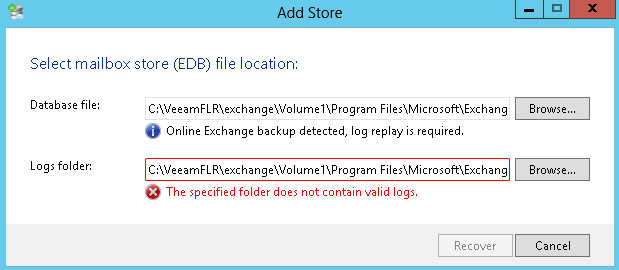
That's a question that came up on our internal forums. Well at first, it looks like it is not possible. You will get this kind of message:


Saying that you can't open the EDB because "Online Exchange backup detected, log replay is required".

So what can you do? Well first start a windows file level recovery of your exchange server.


This should mount the server disk under c:\veeamflr\exchange\ (depending on the vm name). Now start by extracting the eseutil to a defined directory on your Veeam server. By default you can find the tools and dlls under:
 c:\veeamflr\exchange\volume1\Program Files\Microsoft\Exchange Server\V15\Bin


Personally I just copied everything which starts with ese like so:
cp  "c:\veeamflr\exchange\volume1\Program Files\Microsoft\Exchange Server\V15\Bin\ese*" .

Alternatively you can also copy them from your  live exchange server.

Now let's query the DB by using eseutil and the /mh parameter like so:
PS C:\eseextract> .\eseutil.exe /mh "C:\veeamflr\exchange\volume1\Program Files\Microsoft\Exchange Server\V15\Mailbox\Mailbox Database 1821327848\Mailbox Database 1821327848.edb"


It shows that the db is in dirty shutdown, matching the description of the explorer. So let's hard repair it without logs.

Now here is the tricky bit. When you start File Level Recovery, a cache file will be made holding all writes under:
C:\Windows\system32\config\systemprofile\AppData\Local\mount_cache{}


The cache will be deleted automatically but it might mean that when you are repairing, it could grow filling up your whole c: drive. If you are not sure, copy the EDB to a second location where you will have plenty of space. Also you will see that the recovery process might need upto 2x the space of the original EDB. This is because it will create a TMP file to work on. So plan for that as well.

In my scenario, I kept the file on the original location but I specified that the TMP file should be on another drive. To recover use eseutil.exe /p (optionally specifying the /t parameter for  the TMP file)  :
PS C:\eseextract> .\eseutil.exe /p "C:\veeamflr\exchange\volume1\Program Files\Microsoft\Exchange Server\V15\Mailbox\Mailbox Database 1821327848\Mailbox Database 1821327848.edb" /t "E:\tmp\tmp.edb"


So it will give you an error that you might potentially loose data. However, remember we are reading the backup in readonly and redirecting writes to the mount_cache file so no harm done.


After some time it should get recovered. You can then validate it again with the /mh parameter like so:
PS C:\eseextract> .\eseutil.exe /mh "C:\veeamflr\exchange\volume1\Program Files\Microsoft\Exchange Server\V15\Mailbox\Mailbox Database 1821327848\Mailbox Database 1821327848.edb"


Your EDB should be in clean shutdown. Now open up the Veeam Explorer for Exchange from the start menu. (If you can't find it, it's under: "C:\Program Files\Veeam\Backup and Replication\ExchangeExplorer\Veeam.Exchange.Explorer.exe" by default)

Then push "add store" and point to your EDB which is under the original EDB path we used with eseutil. In my case:
C:\VeeamFLR\exchange\Volume1\Program Files\Microsoft\Exchange Server\V15\Mailbox\Mailbox Database 1821327848\Mailbox Database 1821327848.edb


For the log directory, point to the directory holding the edb. You should now be able to click open, and get it to work


2014/08/21

Removing the SCOM 2012 R2 agent on a core edition

Recently I reinstalled the whole SCOM setup in my lab. Just because I wanted to test with the latest versions like R2 and needed to use the 180 trial license for that. This left me with a problem. Some of my servers kept reporting to my old SCOM server although it was obviously down. Re-adding the server to the current server didn't work. In the logs, I saw the following messages reappear (scom being my old server)
The description for Event ID 21006 from source OpsMgr Connector cannot be found. Either the component that raises this event is not installed on your local computer or the installation is corrupted. You can install or repair the component on the local computer.

If the event originated on another computer, the display information had to be saved with the event.

The following information was included with the event:

scom

5723
10060L
A connection attempt failed because the connected party did not properly respond after a period of time, or established connection failed because connected host has failed to respond.

So I decided to remove it from SCOM and then manually uninstall the agent. One problem, one of the servers is a core edition. Good lucking launch appwiz on that one. Luckily, it is quite easy to find out how you need to uninstall it. Launch regedit and go to
HKEY_LOCAL_MACHINE\SOFTWARE\Microsoft\Windows\CurrentVersion\Uninstall\
For every installed program, there should be a subkey under which you can see the DisplayName and the UninstallString.

Alternatively, you can use the following script:
$(Get-ChildItem 'HKLM:\SOFTWARE\Microsoft\Windows\CurrentVersion\Uninstall\') | % { Write-host ("Soft : {0} `n`t {1}" -f $_.getvalue("DisplayName"),$_.getvalue("UninstallString")) }
It should output something like this
Soft :

Soft : Microsoft Visual C++ 2008 Redistributable - x64 9.0.30729.4148
         MsiExec.exe /X{4B6C7001-C7D6-3710-913E-5BC23FCE91E6}
Soft : VMware Tools
         MsiExec.exe /X{4D80C805-67C3-4525-A7BA-DC43215E9167}
Soft : Microsoft Monitoring Agent
         MsiExec.exe /I{786970C5-E6F6-4A41-B238-AE25D4B91EEA}
 So to uninstall the agent, first stop the service, just to be sure:
 net stop healthservice
 Then Uninstall the agent. I used the /X flag instead of the /I flag
 MsiExec.exe /X{786970C5-E6F6-4A41-B238-AE25D4B91EEA}
Btw at first, the command didn't want to do anything, rebooting the server helped. A GUI should appear requesting if you are sure you want to uninstall.

Then I deleted the directories under program files just to be sure that no residue was left on the filesystem:
rmdir "C:\Program Files\System Center Operations Manager" /s
rmdir "C:\Program Files\Microsoft Monitoring Agent" /s
Redeployed and let's hope I won't see those nasty error messages re-appear

2014/05/21

What is the buzz around Backup from Storage Snapshots anyway?

It is always great if vendors announce new features because most likely they are solving issue existing customers have. One of the better features Veeam released is Backup from Storage Snapshots. In v7, this feature supports HP Storeserv and HP Storevirtual storage platforms. As recently announced, in v8 this feature will be extended to Netapp.

But what problem does it really solve? When I am talking to customers, I have two kinds of customers: the ones that have the actual problem and the ones that don't. You can easily recognize them, cause if you have one of the first category, they immediately say : "We need this!".

So let's look at the problem first, and then explain how Backup from Storage Snapshots (BfSS) works.

With the introduction of Virtualisation, there are actually more layers that have to be made consistent before you can make a backup. In the old days, it was just the application, operating system and then the hardware (SAN) underneath that. Now, a new layer has been introduced: the Virtualisation layer itself.

Since Veeam backups at the VM level, it makes sense to take into account this layer. The way Veeam does it, is by taking VM snapshots (for VMware). To make everything consistent in the VM there are a couple of possibilities :
  • Use Veeam Application Aware Image Processing: basically talk to VSS directly via a runtime component. If necessary, it can also truncate logs for Exchange or SQL
  • Use VMware Tools: For Windows it will also do a (filesystem level) integration with VSS. For other platforms (or if you prefer), you can use pre-snapshot/post-snapshot scripts.
Once everything is consistent in the VM, Veeam then triggers a VMware snapshot. When that snapshot is created, everything can be released in the guest because you have a "consistent photo" of your VM. But what happens underneath?


Before the snapshot is created, the VM is happily reading and writing to the VMDK


After a snapshot has been created, VMware will create a delta disk. This disk will be very small in the beginning. However, while the snapshot exists (and thus the delta disk exists), the writes are redirected to this delta volume. The great advantage is that only reads will be done from the original VMDK if the blocks have not been overwritten. This means that we can backup the original VMDK knowing that it is in a consistent state and won't be altered during backup

Important, VMware snapshots are not "transaction logs". If a block is updated for a second time, the block in the spare disk will be updated thus not taking extra space. That means the delta can maximally grow to the size of the original VMDK.

Well so far, so good. But what is the problem with this?


If you have a not so I/O active VM, there is not really a problem. Because of change block tracking feature, Veeam only has to backup the blocks that have been changed between back-ups. That means fast backups and due to the low I/O, the delta won't grow so fast.

But what if you have an I/O active VM. Well then you have a couple of problems. First of all, your snapshots will grow with 16MB extents (or at least that is what I could find on the net). But everytime it grows, it needs to lock the clustered volume (VMFS) to allocate more space for the VMDK (Meta updates). That means extra I/O will be needed but also possible impact on other VMs that run on the same volume due to these locks. This problem also occurs with thin provisioning.

Secondly, if you are using thin provisioned VMFS volumes, the VMFS volumes will consume more and more space on the SAN. When you delete the snapshot, that space won't be automatically reclaimed. VMware now support the UNMAP VAAI primitive but as far as I know, it is not an automatic process:
http://cormachogan.com/2013/11/27/vsphere-5-5-storage-enhancements-part-4-unmap/

Finally because it is an I/O active VM, it probably has changed a lot of blocks between backups meaning that the VM backup might take long.

So if you could reduce the time the snapshot is active, the snapshot won't have the chance to grow that big. You might not avoid the problems completely but at least the impact will be a lot smaller.

But it can get worse. What happens when you delete (commit) the snapshot? Of course your data is not just discarded but need to be re-applied to the original volume. However, writes are still being done to that snapshot, so you can not just start merging. Because what happens to a block you are committing back and updating at the same time? Well for that VM uses a consolidated helper snapshots.


Basically VMware creates a second snapshot. All writes will be redirected to this helper. Then you can start committing the data back to the original VMDK.


Once that is done, the hope is of course that "the consolidated helper" snapshot is smaller then the original snapshot. So for example, if backup time took 4 hours, the hope is that consolidating only took for example 10 minutes, meaning that the snapshot might only be a fraction of the original snapshot.

What is important is to notice is that, the bigger the snapshot, the more extra I/O will be generated during commit. You need to read the blocks from the snapshot and then overwrite them in the original VMDK. That means that during a commit, you might notice a performance impact on the volume and thus on your original VM as well.

But what happens after that commit? You are left with consolidated helper, so you need to commit that. In 3.5, VMware just frozes the VM (holding off all I/O), and commited the delta file to the VMDK (call a sync commit). That means you can have huge freeze times (stuns). At one point, VMware improved this process by creating additional helper snapshots and going through the same process over and over again until it feels confident that it can commits the snapshots in a small time.

There are actually 2 parameters that impact this process.
  • snapshot.maxIterations : How many times will we repeat this process of creating helper snapshots and committing them. After all iterations are over, the VM will be stunned anyway and the commit will be forced. By default, VMware will go through 10 iterations max
  • snapshot.maxConsolidateTime : What is the estimated time VMware can stun your VM. The default is 6 seconds. For example, if after 3 iterations, VMware is confident it can commit the block of the helper snapshots in less then 6 seconds, it will freeze all I/O (stun), commit the snapshot, continue I/O (unstun) and not go through any additional iterations.
http://kb.vmware.com/selfservice/microsites/search.do?language=en_US&cmd=displayKC&externalId=2039754

So if you are running I/O intensive program, the impact might be huge if you have to go to several iterations. Also imagine that instead of getting smaller consolidaton helpers, you will get bigger helpers after several iteration, the stun time might become huge instead of smaller. In the KB article there is an example that if you start with 5 minutes stun time, you might actually end up with 30 minutes stun time.

As a side note, I have to thank my colleague Andreas for pointing us to these parameters. While they where undocumented back then, they helped me find to find the info I needed. His article describes the process of lowering Max Consolidate Time for Exchange DAG Cluster. Granted VMware might go to additional iterations but the result might be that the stun time will be smaller thus not causing any failover. Like he suggest as well, only do this together with support. If your I/O is too high, you might actually amplify the problem as described above.

Conclusion is that, if you keep the delta file small, commit will be much faster, will have to go to a lot less iterations and stun time might be minimized (even if you go through max iterations).

So how does BfSS helps then? Well, when you use BfSS, a storage snapshot will be created after the snapshot on VM level is created. That means you can then instantly delete the snapshot on a VM level.


So as you can see the start is the same.
 

But then you create a snapshot by talking to the SAN/NAS devices that is hosting the VMFS volume / NFS share . This means your VM snapshot is "included" in the SAN snapshot, and this allows you to instantly commit the snapshot on the VM level


Afterwards the Veeam Backup & Replication proxy can read the data directly via the storage controller. Granted, Veeam will still create a snapshot, but you can imagine that a delta of 2 minutes while be 100x times smaller than a delta of 3 hours.

Sometimes customers will ask me if you are not shifting the problem. From a thin provisioning perspective of course not because the SAN is aware of the blocks it deletes. From a performance impact, SAN arrays are designed to do this. In fact, snapshots are NetApp bread and butter. They just redirect pointer, so deleting a snapshot is just throwing away the pointers. So no nasty commit times there.

But there is another bonus with storage snapshots that will be exclusively available for Netapp. VMware has still not solved the stun-problem that you can have with VMs hosted on NFS volumes when using Hot-Add backup mode. Backup & Replication has a way around this, but still it requires you to deploy a proxy on each host.

With BfSS, v8 while also implement an NFS client in the proxy component for Netapp. That means, even though you use NFS, you can use a "Direct SAN" approach (or as I like to call it Direct NAS). First of all it means you won't have those nasty stuns but more importantly, you will read the data where it resides. That means no extra overhead on the ESXi side (no CPU/MEM needed!) when you are running your backups.

So although demoing this feature might not look impressive  (unless you have this problem of course), you can see that it a major feature that has been added to Veeam Backup & Replication. The impact of making backups on I/O intensive VM will be drastically lower, allowing you to do more backups and thus yielding a better RPO.

 *Edit* I also found that VMware has added a new parameters in one of its patches, but what snapshot.asyncConsolidate.forceSync = "FALSE" does is not described. 

2014/04/16

Powershell wrapper for Beta Veeam Explorer for Active Directory

The new Veeam Explorer for Active Directory is cool stuff. I blogged about it earlier, showing how you can use it today. However it also shows that some manual steps have to be taken. Well, if you work as a sales engineer, you got to do these demo's a lot, meaning a lot of repetitive steps.

Then today, something on the Veeam forum inspired me. A guy was trying to start a Windows FLR via Powershell. So I decided to make a small wrapper to start the FLR and automate all those manual steps... well it sorta got "out of hands"..

You can get the wrapper script here. Save it on the backup server. Make sure to unblock the powershell script (go to the files properties, under the general tab, just above the ok button there should be some warning about downloaded content). Also make sure you have the correct executionpolicy setup.

Then create a new shortcut. In this shortcut specify the following parameter
powershell.exe -file "[path\to\script]\start-vbradrestorefromlatestbackup.ps1"

You can notice in the screenshot I added some parameters. This is where things got "out of hands".

-server [server] : auto select a certain vm. If you don't specify it, the wizard should propose you all the possible VM's in the backup files known to your backup & replication instance


-latest : auto select the latest restore point. If you don't specify it, the wizard should propose the available restore points for the VM you selected


 -autodiscovery : try to connect to the production server to learn where the ntds.dit file is stored. By default it is disabled and the wizard will use the default path "c:\windows\ntds\ntds.dit". I felt it was safer not to automatically connect to production. Notice that WinRM should be enabled as the script uses invoke-command to read the registry key on the production server.

-autodiscoveryserver [dns production ad] : give the ip or dns name to connect to, to do the auto discovery. If not specified but autodiscovery is on, the wizard will try to extract the DNS name from the restore point or use the VM name as a DNS name

-askcredentials : ask for credentials to do the autodiscovery. If you don't specify, it will just use invoke-command with your credentials.


-filepath : if you want to manually specify the path to the ntds.dit file (assuming you didn't enable autodiscovery)

-adexplorer : if you didn't installed the explorer on the default path

Once you have the shortcut, you should right click it and make sure to run it is as an administrator


If you want to give it a shiny icon, you can do that in the shortcut settings as well. Change the icon and browse to the explorer path. By default it is under "C:\Program Files\Veeam\Backup and Replication\ActiveDirectoryExplorer\Veeam.ActiveDirectory.Explorer.exe"


Now you should be up and running. Just click your shiny new shortcut. It should launch the wizard and automatically load the ntds.dit file after a FLR into the VEAD.


You will notice the Powershell window will stay open. That is because it is waiting for you to close the VEAD and to automatically stop the FLR so that everything is cleaned up as well