Showing posts with label veeam. Show all posts

2016/04/13

Veeam RESTful API via Powershell

In this blog post I'll show you how you can play around with Veeam RESTful API via Powershell.  This post will show you how to find a job and start it. You might wonder why would you do such a thing? Well in my case it is to showcase the interaction with the API (per line of code), very similar as you with do with wget or curl. If you want an interactive way of playing with the api, know that you can always replace the /api with /web/#api/ (for example http://localhost:9399/web/#/api/) to get an interactive browser. However, via Powershell you get the real sense that you are interacting with the API and all methods used here should be portable to any other language. That is why I've not chosen to use "invoke-restmethod", but rather a raw HTTP call.


So the first thing (which might not be required), is to ignore the self signed certificate. If you access the API via  FQDN on the server itself, the certificate should be trusted, but that would make my code less generic.
add-type @"
    using System.Net;
    using System.Security.Cryptography.X509Certificates;
    public class TrustAllCertsPolicy : ICertificatePolicy {
        public bool CheckValidationResult(
            ServicePoint srvPoint, X509Certificate certificate,
            WebRequest request, int certificateProblem) {
            return true;
        }
    }
"@
[System.Net.ServicePointManager]::CertificatePolicy = New-Object TrustAllCertsPolicy
So with that code executed, you have told dotnet to thrust everything. Next step is to get the API version
$r_api = Invoke-WebRequest -Method Get -Uri "https://localhost:9398/api/"
$r_api_xml = [xml]$r_api.Content
$r_api_links = @($r_api_xml.EnterpriseManager.SupportedVersions.SupportedVersion | ? { $_.Name -eq "v1_2" })[0].Links
With the first request, we basically do a get request to the API page. The Veeam REST API uses XML in favor of  JSON. So we can just convert the content itself to XML. Once that is done, we can browse the XML. The cool thing about Powershell is that it allows you to browse the structure and autocompletes. Just execute $r_api_xml and you will get the root element. By adding a dot and the start-element, you can see what's underneath this node. You can repeat this process to "explore" the XML (or you can just print out the $r_api.Content without conversion to see the plain XML).

Under the root container (EnterpriseManager), we have a list of all SupportedVersion. By applying a filter we get the v1_2 (v9) API version. This one has one Link which indicates how you can logon
PS C:\Users\Timothy> $r_api_links.Link | fl

Href : https://localhost:9398/api/sessionMngr/?v=v1_2
Type : LogonSession
Rel  : Create
So the Href show the link we have to follow. The type tells use the name of the link and then finally, Rel explains us which http method we should use. Create means we need to do a Post.

Most of the times:
  • get method is if you want to get details but don't want do a real action. 
  • post method is used if you want to do a real action
  • put method if you want to update
  • delete method if you want to destroy something
When in doubt, check the manual :  https://helpcenter.veeam.com/backup/rest/requests.html 

Ok for authentication, we have to do something special, we need to send the credentials via basic authentication. This is a pure HTTP standard, so I'll show you two ways to do it
$r_login = Invoke-WebRequest -method Post -Uri $r_api_links.Link.Href -Credential (Get-Credential -Message "Basic Auth" -UserName "rest")

#even more raw

$auth = "Basic " + [System.Convert]::ToBase64String([System.Text.Encoding]::UTF8.GetBytes("mylogin:myadvancedpassword"))
$r_login = Invoke-WebRequest -method Post -Uri $r_api_links.Link.Href -Headers @{"Authorization"=$auth}
Well the first method uses Powershell built-in functionality for doing BASIC authentication. The second method, actually shows what is really going on in the HTTP request. "username:password" is encoded as base64. then "Basic " and this encoded string are concatenated. This result is then set in the Authorization header of the request.

The result is that (if we logged on successfully), we get a logon session, which has links to almost all main resources. Before we go any farther, we do need to analyze a bit the response.
if ($r_login.StatusCode -lt 400) {
If you do a call, you can check the StatusCode or return code. You are expecting a number between 200-204 which means success. If you want to know the exact meaning of the HTTP return code in the Veeam REST API : https://helpcenter.veeam.com/backup/rest/http_response_codes.html

The next thing now is to extract the Rest session id. Instead of sending over the username and password the whole time, you need to send over this header to authenticate. The header is returned after you succesfully logged in.
    #get session id which we need to do subsequent request
    $sessionheadername = "X-RestSvcSessionId"
    $sessionid = $r_login.Headers[$sessionheadername]
So now we have the session id extracted, lets do something useful
    #content
    $r_login_xml = [xml]$r_login.Content
    $r_login_links = $r_login_xml.LogonSession.Links.Link
    $joblink = $r_login_links | ? { $_.Type -eq "JobReferenceList" }
First we take the logon session, convert it to XML and we browse the links. We are looking for the link with name "JobReferenceList". Let's follow this link. In the process, don't forget to configure in your header the session id.
    #get jobs with id we have
    $r_jobs = Invoke-WebRequest -Method Get -Headers @{$sessionheadername=$sessionid} -Uri $joblink.Href
    $r_jobs_xml = [xml]$r_jobs.Content
    $r_job = $r_jobs_xml.EntityReferences.Ref | ? { $_.Name -Match "myjob" }
    $r_job_alt = $r_job.Links.Link | ? { $_.Rel -eq "Alternate" }
So the first line is just getting and converting the XML. The page which we requested is a list of a the job in reference format. The reference format is a compacted way of representing the object that you requested, basically showing the name and the ID of the job and some links. If you add the "?format=Entity" to such a list (or request of an object/objectlist). You get the full details of the job.

So why the reference representation? Well it is a pretty similar concept to the GUI. If you open the Backup & Replication GUI and you select the job list, you don't get the complete details of all the jobs. That would be kind of overwhelming. But when you click a specific job and try to edit it, you get all the details. Similar, if you want to built an overview of all the jobs, you wouldn't want the API to give you all the unnecessary details as this would make the "processing time" of the request much bigger (downloading the data, parsing it, extracting what you need, ..)

So in the 3rd line, what we do is look for the job (or rather the reference to a job), which names matches "myjob". We then take a look at the links of this job and look for the alternate link. Basically, this is the jobid + "?format=Entity" to get the complete details of the job. Here is the the output of $r_job_alt
PS C:\Users\Timothy> $r_job_alt | fl
Href : https://localhost:9398/api/jobs/f7d731be-53f7-40ca-9c45-cbdaf29e2d99?format=Entity
Name : myjob
Type : Job
Rel  : Alternate
Now ask for the details of the job
    $r_job_entity = Invoke-WebRequest -Method Get -Headers @{$sessionheadername=$sessionid} -Uri $r_job_alt.Href
    $r_job_entity_xml = [xml]$r_job_entity.Content
    $r_job_start = $r_job_entity_xml.Job.Links.Link | ? { $_.Rel -eq "Start" }
By now, the first 2 lines should be well understood. In the third line we are looking for a link on this object with name start. This is basically the method we need to execute to start the job. Start is a real action and if you look it up, you will see that you need a POST method it to call it
 #start the job
    $r_start = Invoke-WebRequest -Method Post -Headers @{$sessionheadername=$sessionid} -Uri $r_job_start.Href
    $r_start_xml =  [xml]$r_start.Content

    #check of command is succesfully delegated
    while ( $r_start_xml.Task.State -eq "Running") {
        $r_start = Invoke-WebRequest -Method Get -Headers @{$sessionheadername=$sessionid} -Uri $r_start_xml.Task.Href
        $r_start_xml =  [xml]$r_start.Content
        write-host $r_start_xml.Task.State
        Start-Sleep -Seconds 1
    }
    write-host $r_start_xml.Task.Result
Ok so that a bunch of code, but still wanted to post it. So first we follow the start method and parse the XML. The result is actually a "Task". A Task in the end is representing a process that is running on the RESTful api, that you can refresh, to check the actual status of the process. What is important, it is the REST process but not the Backup Server process. That means that if a task is finished for REST, it doesn't mean necessarily that the action at the backup server is finished. What is finished is that the API has passed your command to the backup server.

So in this example, we check if the task is "Running", we will refresh the task and write out the State, sleep 1 second, and  then do the whole thing again while it is in "Running" state. Once it is finished, we write out the Task.Result. Again, if this task is Finished, it does not mean the job is finished, but the backup server has "started" the job hopefully succefully

So finally we need to log out. That rather easy. In the logon session, you will find the URL to do so. Since you are logging out or deleting your session, you need to use the method "DELETE". You can check that by checking the relationship of the link.
    $logofflink = $r_login_xml.LogonSession.Links.Link | ? { $_.type -match "LogonSession" }
    Invoke-WebRequest -Method Delete -Headers @{$sessionheadername=$sessionid} -Uri $logofflink.Href
I have uploaded the complete code here:
https://github.com/tdewin/veeampowershell/blob/master/restdemo.ps1 
There is some more code in that example that does the actual follow up on the process. But you can skip or analyze the code if you want.

2015/08/25

Global backup report in Powershell

A lot of partners, try to go that extra step and also manage onsite Veeam backup environments. They mostly want a report with all jobs status from all Veeam backup servers, instead of plowing through 100's of emails sent by multiple backup servers

Enterprise manager allows you to do that. You can add multiple backup servers and it will give you a global overview. However, it also acts like a license manager. So if you have different customers, with different licenses, you can not add them all together in one Enterprise manager.

A way around it would be to create some Restful API integration. That would be the cleanest way to do it in my humble opinion. However if you want to have a quick hack, you can also do it by using Powershell. Just launch a remote session to all those backups servers and collect the data.

Now a lot of people just need a small "sample" script, just to get started. So here is a basic "sample". It is surely not future complete and has very poor error handling. But it can get you started.

So the first part defines the instances. Granted it would be cleaner to take the table, convert it to a csv, and then import it at the beginning of the script. The instances table exists out of objects that define: the customer, the backupserver, the username and then the password in an encrypted form. Not sure how to get the password in an encrypted form? Just use the code at the top to generate what you need. However make sure that the whole password doesn't have any line breaks when you copy past!


Resulting in the pre-created code


After correct copy/pasting and removing line breaks, you should get something like this


If you then run the code, it should connect to all the instances, execute some Veeam PS Code, built a table and then collect it centrally. The end result? A $globaljob table, which you can then use to build a csv report, html report, one big email, etc.. Hope it can be useful to somebody as a starting point!

2015/05/05

Veeam Job Managers, Veeam Agents, Tasks and more..

One of the most common statements I hear is that Veeam is good for SMB. Maybe with good reason. The GUI is simple and sleek. It doesn't require you to study 2 weeks just to install and configure some jobs. This was done by intention and makes it a good solution for SMB, but not exclusively for that segment.

A lot of green magic is going on under the hood. The application is created so that it works out of the box in smaller environments. However, when you are in a bigger environment, it might be interesting to dig a little deeper and understand the global architecture. Most of the problems I see when talking to people are just mis-configurations or not understanding how it all works together.

When I start talking about proxies and repositories, to my surprise, I still see a lot of people wondering what it all means. Hopefully after this blog posts, or everything is clear, or you are so fascinated that you want to know more.

Before we think about backup, let's look at the scalability of a movie theater. If we look at people handling the ticket process, we can see a couple of people that are important.

First of all, we have people that are selling tickets. They are actually executing all the hard work. They do a constant repetitive process of taking money and exchange it for a ticket. There job is fairly simple in what they need do, but they are quite busy.

At the gate of the movie room, there is somebody checking those tickets, and letting people inside the room. Maybe they can handle multiple tickets, but only person (or group) is allowed into the screening room at the time because otherwise it will be all messy. It is clear, that scanning or checking a tickets is a much simpler process then selling the whole tickets. Less interactions is required. Thus the ratio, cashiers vs doormen is different

At the heart of the system is someone that regulates the whole chain, let's say the floor manager. He decides where cashiers are sitting and thus in effect which customers they are handling. He is instructing the doormen when they need to come to work and when they can take a break. Most importantly, he is not doing any of the real physical work but it is the brain of the operations.Without him instructing, nobody isn't doing anything.

Scaling out is easy. If you run a small theater, you might have only 1 person doing all the jobs. This of course simplifies stuff. However people are not so good in multi threading. So if you need to scale out, you can just hire more cashiers and doormen. These do the hard physical work but require minimal training because they just repeat the same job over and over.


Well Veeam has a very similar chain of responsibility. They are not always apparent but scale out is possible. So how does a movie theater map to Veeam? Well in v6 , Veeam introduced Veeam Agents (VA) or Datamovers (Enterprise Scalability). These small binaries are like the cashiers and doormen. Actually a VA has the logic for both being the doorman or being the cashier at the same time. Still these routines are pretty simple and the Veeam Agent does not have any GUI or anything.

So what do VA's do. Well the task or source agent will read the data from production, execute compression and vmdk level deduplication and send it to the job or target or job agent. The job agent takes the data, deduplicates at the job level and writes it to the backup file. Above it all is the job manager. It will instruct task agents and job agents to work together. However except for scheduling work, it is not really interacting a lot with the VMDK data itself. It just checks that all VM's and VMDK's are succesfully backed up that are configured in this specific job. Don't confuse the job manager with the backup server itself. The Job Manager is just middle management. It is the backup service that will notice that a job is ready to be scheduled. But instead of handling multiple jobs itself, it delegates this to different floor managers. However, he has the overview of theater and ensures that everything is running smoothly.

Already we can see a couple of interesting stuff:
  • A source agent handles individual VMDK's
  • The target agent takes multiple VMDK's or tasks for that specific job and writes it to one file. The reason is quite simple. Writing from multiple process to one file can create a lot of confusion about who is updating one segment of the file, especially if we look at metadata updates. Also job level deduplication is quite difficult if different process are writing to the same file. In case you need multiple streams, you need to power on multiple jobs at the same time.
  • The Job Manager runs on the backup server
  • The VA's can run on separate servers, called proxies or repositories. However, for VMware environments, by default Veeam creates a proxy server and a repository server on the main backup server itself. This gives the impression that Veeam is not scalable because it works out of the box. Don't be confused, if you want to run everything on one physical big physical servers, that's fine. However the scalability is there. For Hyper-V environments, Veeam will actually put the VA on the Hyper-V host itself by default. This is what is called an "on-host" proxy.
  • I once got the remark about a customer that he needed an VA for each VM he had in his organization. This is of course not the case. It would be ideal of course. Imagine that you go to the movie theater and that for each customer there is a cashier. That means you will never ever have to queue. However, we all know that is not how it works. When a customers enters, it queue in one of the available lines, and it when it is his turn, he will be served. Even better, maybe there is somebody at the front checking the available resources and then balancing the load over the available queues. Same   for Backup & Replication, you will need an amount of VA's and Veeam will load balance the load over them in a smart way.
  • Maybe not so clear, but after the all visitors went into the screening room, the door needs to be closed so that no light and noise from outside the room goes in. For Veeam, it is the same, the job is not over after all VMDKs have been backed up. The job agent still needs to consider retention. If you configured 14 points, but after the backup, 15 points are on disk, maybe some clean up action is needed. Since the job agent is close to the repository, it will be the one deleting the files, executing merges or synthetic fulls.
  • A VA for Windows can be a proxy and a repository. A VA for Linux can only act as a repository. Finally you can imagine that you can not run the job agent on a CIFS repository. So Veeam picks out another server automatically to run the job agent. Sometimes, this green magic, does not 100% have all the information it needs to make a rational decisions. Imagine the CIFS share is on another site, and the connection between both sites are limited. In this case it makes sense to run the Job agent near the CIFS share so it can do the merge or synthetic full locally. So if you have multiple sites, it might be wise to configure the gateway server manually (aka, where do I run the job agent)
Another thing that might be interesting to know is that the VA is just a simple binary. It is not being loaded as a service. So how does it get started. Well that depends on the server. For Windows, when you add a repository, the first thing you actually do is a add a "managed server". Adding a managed server for Windows means Veeam will pus:
  • An installer service : to install or update the transport service
  • Transport service : the service running on a windows managed server that kickstarts the VA
You can also check this. If you already configured windows backup proxies and repositories before, you can go to backup infrastructure. Under managed servers, you will see your proxies pop up. If you open up the GUI, you can see under ports, the installer service and the transport service. On the server itself, you will be able to see the Veeam services as well via the services.msc.

Pushing those services is done via the administrative share. However, if due to security configurations, you are not able to do so, you can actually manually install "the installer service". Support can help you with this


For Linux server, Veeam just uses SSH to upload the agent and start the agent dynamically. SSH is a pretty stable protocol for uploading and managing Linux server. This way, Veeam doesn't have to integrate with the different init.d, upstart, etc. mechanisms.

So for this part, lets put all this info into practice. On a Veeam Backup Server with default proxy, I started two jobs


Then I started a small script I wrote to monitor Veeam processes .


First of all, you will see a lot of green magic going on. I'm not going to discuss all the services now but maybe pick out some specifics.

The first one with ID 11604. This is the Veeam Backup Service or the local branch manager. It is started at boot time (parent is the services.exe daemon).

The next 2 processes are job manager. We have two Jobs running so of course, the backup services has started two floor managers to handle those. You can see them with ID  87228 (Backup Job Linux) and  84604 (Backup Job Windows). How do I know they are corresponding to those jobs? Well in the command line, there are random hashes. The first one is actually the Job ID, which you can find in the logs. For example, at the end of the Backup Job Linux log I found
Job has been stopped successfully. Name: [Backup Job Linux], JobId: [82062049-544e-44fc-9bb8-f3727e3464ac]
The second one is the Session ID, which changes every time the job runs. You can also find these IDs in the database. For example, if you need a reference table, you can check BJobs for the matching job ID vs job name

Since I'm running everything on the same server,  you can also see the VAs. You will that there are more VAs active than described above. For example per VM there is also a VA running. But let's check the ones we discussed.

For proxy VA's, you can check ID 85072 (sharepoint vmdk) and 86760 (ad vmdk). What I like is that you can also check is where they are running and logging to. Also, it is important that even though they are running on the backup server, they have not been started by the backup server but rather by the VeeamTransportSVC daemon. So the job manager has contacted this Transport service to kickstart the whole process. Finally, although the Linux Job was running, it didn't have any resource ready to backup the VMDKs (proxy slots) free.

At the target side you can see the target agent or repository agent running with ID 87744 (Backup Windows Job) and ID 86656 (Backup Linux Job). As discussed, there is only one target writer for every job.

2014/05/21

What is the buzz around Backup from Storage Snapshots anyway?

It is always great if vendors announce new features because most likely they are solving issue existing customers have. One of the better features Veeam released is Backup from Storage Snapshots. In v7, this feature supports HP Storeserv and HP Storevirtual storage platforms. As recently announced, in v8 this feature will be extended to Netapp.

But what problem does it really solve? When I am talking to customers, I have two kinds of customers: the ones that have the actual problem and the ones that don't. You can easily recognize them, cause if you have one of the first category, they immediately say : "We need this!".

So let's look at the problem first, and then explain how Backup from Storage Snapshots (BfSS) works.

With the introduction of Virtualisation, there are actually more layers that have to be made consistent before you can make a backup. In the old days, it was just the application, operating system and then the hardware (SAN) underneath that. Now, a new layer has been introduced: the Virtualisation layer itself.

Since Veeam backups at the VM level, it makes sense to take into account this layer. The way Veeam does it, is by taking VM snapshots (for VMware). To make everything consistent in the VM there are a couple of possibilities :
  • Use Veeam Application Aware Image Processing: basically talk to VSS directly via a runtime component. If necessary, it can also truncate logs for Exchange or SQL
  • Use VMware Tools: For Windows it will also do a (filesystem level) integration with VSS. For other platforms (or if you prefer), you can use pre-snapshot/post-snapshot scripts.
Once everything is consistent in the VM, Veeam then triggers a VMware snapshot. When that snapshot is created, everything can be released in the guest because you have a "consistent photo" of your VM. But what happens underneath?


Before the snapshot is created, the VM is happily reading and writing to the VMDK


After a snapshot has been created, VMware will create a delta disk. This disk will be very small in the beginning. However, while the snapshot exists (and thus the delta disk exists), the writes are redirected to this delta volume. The great advantage is that only reads will be done from the original VMDK if the blocks have not been overwritten. This means that we can backup the original VMDK knowing that it is in a consistent state and won't be altered during backup

Important, VMware snapshots are not "transaction logs". If a block is updated for a second time, the block in the spare disk will be updated thus not taking extra space. That means the delta can maximally grow to the size of the original VMDK.

Well so far, so good. But what is the problem with this?


If you have a not so I/O active VM, there is not really a problem. Because of change block tracking feature, Veeam only has to backup the blocks that have been changed between back-ups. That means fast backups and due to the low I/O, the delta won't grow so fast.

But what if you have an I/O active VM. Well then you have a couple of problems. First of all, your snapshots will grow with 16MB extents (or at least that is what I could find on the net). But everytime it grows, it needs to lock the clustered volume (VMFS) to allocate more space for the VMDK (Meta updates). That means extra I/O will be needed but also possible impact on other VMs that run on the same volume due to these locks. This problem also occurs with thin provisioning.

Secondly, if you are using thin provisioned VMFS volumes, the VMFS volumes will consume more and more space on the SAN. When you delete the snapshot, that space won't be automatically reclaimed. VMware now support the UNMAP VAAI primitive but as far as I know, it is not an automatic process:
http://cormachogan.com/2013/11/27/vsphere-5-5-storage-enhancements-part-4-unmap/

Finally because it is an I/O active VM, it probably has changed a lot of blocks between backups meaning that the VM backup might take long.

So if you could reduce the time the snapshot is active, the snapshot won't have the chance to grow that big. You might not avoid the problems completely but at least the impact will be a lot smaller.

But it can get worse. What happens when you delete (commit) the snapshot? Of course your data is not just discarded but need to be re-applied to the original volume. However, writes are still being done to that snapshot, so you can not just start merging. Because what happens to a block you are committing back and updating at the same time? Well for that VM uses a consolidated helper snapshots.


Basically VMware creates a second snapshot. All writes will be redirected to this helper. Then you can start committing the data back to the original VMDK.


Once that is done, the hope is of course that "the consolidated helper" snapshot is smaller then the original snapshot. So for example, if backup time took 4 hours, the hope is that consolidating only took for example 10 minutes, meaning that the snapshot might only be a fraction of the original snapshot.

What is important is to notice is that, the bigger the snapshot, the more extra I/O will be generated during commit. You need to read the blocks from the snapshot and then overwrite them in the original VMDK. That means that during a commit, you might notice a performance impact on the volume and thus on your original VM as well.

But what happens after that commit? You are left with consolidated helper, so you need to commit that. In 3.5, VMware just frozes the VM (holding off all I/O), and commited the delta file to the VMDK (call a sync commit). That means you can have huge freeze times (stuns). At one point, VMware improved this process by creating additional helper snapshots and going through the same process over and over again until it feels confident that it can commits the snapshots in a small time.

There are actually 2 parameters that impact this process.
  • snapshot.maxIterations : How many times will we repeat this process of creating helper snapshots and committing them. After all iterations are over, the VM will be stunned anyway and the commit will be forced. By default, VMware will go through 10 iterations max
  • snapshot.maxConsolidateTime : What is the estimated time VMware can stun your VM. The default is 6 seconds. For example, if after 3 iterations, VMware is confident it can commit the block of the helper snapshots in less then 6 seconds, it will freeze all I/O (stun), commit the snapshot, continue I/O (unstun) and not go through any additional iterations.
http://kb.vmware.com/selfservice/microsites/search.do?language=en_US&cmd=displayKC&externalId=2039754

So if you are running I/O intensive program, the impact might be huge if you have to go to several iterations. Also imagine that instead of getting smaller consolidaton helpers, you will get bigger helpers after several iteration, the stun time might become huge instead of smaller. In the KB article there is an example that if you start with 5 minutes stun time, you might actually end up with 30 minutes stun time.

As a side note, I have to thank my colleague Andreas for pointing us to these parameters. While they where undocumented back then, they helped me find to find the info I needed. His article describes the process of lowering Max Consolidate Time for Exchange DAG Cluster. Granted VMware might go to additional iterations but the result might be that the stun time will be smaller thus not causing any failover. Like he suggest as well, only do this together with support. If your I/O is too high, you might actually amplify the problem as described above.

Conclusion is that, if you keep the delta file small, commit will be much faster, will have to go to a lot less iterations and stun time might be minimized (even if you go through max iterations).

So how does BfSS helps then? Well, when you use BfSS, a storage snapshot will be created after the snapshot on VM level is created. That means you can then instantly delete the snapshot on a VM level.


So as you can see the start is the same.
 

But then you create a snapshot by talking to the SAN/NAS devices that is hosting the VMFS volume / NFS share . This means your VM snapshot is "included" in the SAN snapshot, and this allows you to instantly commit the snapshot on the VM level


Afterwards the Veeam Backup & Replication proxy can read the data directly via the storage controller. Granted, Veeam will still create a snapshot, but you can imagine that a delta of 2 minutes while be 100x times smaller than a delta of 3 hours.

Sometimes customers will ask me if you are not shifting the problem. From a thin provisioning perspective of course not because the SAN is aware of the blocks it deletes. From a performance impact, SAN arrays are designed to do this. In fact, snapshots are NetApp bread and butter. They just redirect pointer, so deleting a snapshot is just throwing away the pointers. So no nasty commit times there.

But there is another bonus with storage snapshots that will be exclusively available for Netapp. VMware has still not solved the stun-problem that you can have with VMs hosted on NFS volumes when using Hot-Add backup mode. Backup & Replication has a way around this, but still it requires you to deploy a proxy on each host.

With BfSS, v8 while also implement an NFS client in the proxy component for Netapp. That means, even though you use NFS, you can use a "Direct SAN" approach (or as I like to call it Direct NAS). First of all it means you won't have those nasty stuns but more importantly, you will read the data where it resides. That means no extra overhead on the ESXi side (no CPU/MEM needed!) when you are running your backups.

So although demoing this feature might not look impressive  (unless you have this problem of course), you can see that it a major feature that has been added to Veeam Backup & Replication. The impact of making backups on I/O intensive VM will be drastically lower, allowing you to do more backups and thus yielding a better RPO.

 *Edit* I also found that VMware has added a new parameters in one of its patches, but what snapshot.asyncConsolidate.forceSync = "FALSE" does is not described. 

2014/04/16

Powershell wrapper for Beta Veeam Explorer for Active Directory

The new Veeam Explorer for Active Directory is cool stuff. I blogged about it earlier, showing how you can use it today. However it also shows that some manual steps have to be taken. Well, if you work as a sales engineer, you got to do these demo's a lot, meaning a lot of repetitive steps.

Then today, something on the Veeam forum inspired me. A guy was trying to start a Windows FLR via Powershell. So I decided to make a small wrapper to start the FLR and automate all those manual steps... well it sorta got "out of hands"..

You can get the wrapper script here. Save it on the backup server. Make sure to unblock the powershell script (go to the files properties, under the general tab, just above the ok button there should be some warning about downloaded content). Also make sure you have the correct executionpolicy setup.

Then create a new shortcut. In this shortcut specify the following parameter
powershell.exe -file "[path\to\script]\start-vbradrestorefromlatestbackup.ps1"

You can notice in the screenshot I added some parameters. This is where things got "out of hands".

-server [server] : auto select a certain vm. If you don't specify it, the wizard should propose you all the possible VM's in the backup files known to your backup & replication instance


-latest : auto select the latest restore point. If you don't specify it, the wizard should propose the available restore points for the VM you selected


 -autodiscovery : try to connect to the production server to learn where the ntds.dit file is stored. By default it is disabled and the wizard will use the default path "c:\windows\ntds\ntds.dit". I felt it was safer not to automatically connect to production. Notice that WinRM should be enabled as the script uses invoke-command to read the registry key on the production server.

-autodiscoveryserver [dns production ad] : give the ip or dns name to connect to, to do the auto discovery. If not specified but autodiscovery is on, the wizard will try to extract the DNS name from the restore point or use the VM name as a DNS name

-askcredentials : ask for credentials to do the autodiscovery. If you don't specify, it will just use invoke-command with your credentials.


-filepath : if you want to manually specify the path to the ntds.dit file (assuming you didn't enable autodiscovery)

-adexplorer : if you didn't installed the explorer on the default path

Once you have the shortcut, you should right click it and make sure to run it is as an administrator


If you want to give it a shiny icon, you can do that in the shortcut settings as well. Change the icon and browse to the explorer path. By default it is under "C:\Program Files\Veeam\Backup and Replication\ActiveDirectoryExplorer\Veeam.ActiveDirectory.Explorer.exe"


Now you should be up and running. Just click your shiny new shortcut. It should launch the wizard and automatically load the ntds.dit file after a FLR into the VEAD.


You will notice the Powershell window will stay open. That is because it is waiting for you to close the VEAD and to automatically stop the FLR so that everything is cleaned up as well


2014/03/18

Get even more control over your Veeam schedules

Veeam has a pretty extensive scheduler for jobs. However sometimes customers really want strange schedules to run their backups. I always try to change the mindset. Sometimes they want to have alternating backups just because they don't know the backup copy job exists in v7. In this case, it's like your Santa bringing them a new Christmas present when you explain them that they can actually copy their backups really easily from repository to repository.

However sometimes they have exotic questions. For example we want to run an active full every 2 weeks. Not every week or every month, no every 2 weeks. So what can you do in this case? Well use the Windows task scheduler and some easy Powershell script that executes your logic.

If you want to use Veeam Powershells snapin, make sure you explicitly install it. It is provided as part of the Veeam Backup & Replication installer, but is not selected by default. To validate, just check if you can find the Powershell option in your main menu.


If you don't have it installed, you can fire up the main installer or just locate the corresponding MSI on the iso ":\Backup\BPS_x64.msi"


The most  simple script can be found here:
simplestartjob.ps1

Change the name of the job in the script to match your job you want to start. Then go to the windows task scheduler and make a new task:


Then create a new task. Personally I like to add my Veeam task in a custom folder so that they are all grouped together.


On the general page enable
  • "Run whether user is logged on or not"
  • "Run with highest privileges" : If you want to know why you need to enable this, find more info at the end of the blog article. If you don't care, go ahead and continue

On the action tab, add a new action


Fill the correct setting
  • Program : powershell
  • Arguments : "e:\scripts\simplestartjob.ps1"
 Use the quotes to be safe (for examples if you have spaces in your path


The result should be something like this:


Now create a trigger


You can schedule it daily, weekly or monthly


Finally click ok and enter the credentials.


When the script runs it should start your job


Also I created some scripts in the past for customers:
  • Activefull.ps1 : Active full which should be run on special time. With the windows task scheduler you can say for example first and third week of the month. Alternatively you can do the alternation in the script itself
    • alternate weeks: if( ([int]$(get-date -uformat "%V"))%2 -eq 1) { do_something }
    • alternate days: if( ([int]$(get-date -uformat "%j"))%2 -eq 1) { do_something }
  • Startjob.ps1 : Launcher script. Instead of making a different script for each job, you can reuse the script and give the job name via a parameter
    • Please not that the argument should be something like (single quotes around names). Correct quotes are important "c:\path\to\script\startjob.ps1 'my job name'"
  • Stoptapejob  : Stop tape job after a certain time. Customer has a single drive and tape job "hang" if there is no drive in the slots and he was canceling them manually every day.

Why I need to run with highest privileges
Actually if you just open a powershell prompt in non-admin mode and admin mode you will see why


When you run in non-admin mode you will get a SQL error. Actually it is not really about admin mode but more about the fact that the current user doesn't have access to the database. It is actually the same requirement, when you want to give users fine grained access to the GUI. So first of all make sure you setup the correct permissions in B&R itself (Main menu>Users and roles)


Next to that, users also need permissions to the database that is behind B&R

If you give the user db_owner on the Veeam db, it should work as well


2014/03/17

Test driving the new Veeam Explorer for Active Directory

If you are a Veeam fan, you certainly need to read the word of Gostev. Basically you enroll  on the forum and every week you will get a mail from the forum containing the word of Gostev. He is the product manager for Backup & Replication and if you want to be the first one to know all about the new stuff in IT (not only Veeam), you'll see that this weekly mail avoids you reading 25 blog articles a day (quote I borrowed from one of my colleagues ;)).

This week wasn't any different. Veeam launched the public beta for the Veeam Explorer for Active Directory. So what is the big difference between the AD AIR wizard and this one? Well you don't need to power on a virtual lab to extract a single user. Instead, Veeam will read the ntds.dit (ad database file) directly via a file level recovery. This reduces recovery time drastically. The coolest part? It's a public beta, so everybody can test it!

So how do you get started? Well you will need a Veeam Backup & Replication server v7 installed. Then you can download the beta via the forums:
http://forums.veeam.com/veeam-backup-replication-f2/veeam-explorer-for-active-directory-t21038.html

Basically, you will get a zip file and in it is an MSI installer you can just next-next-install.


After that you should find the VEAD in your start menu


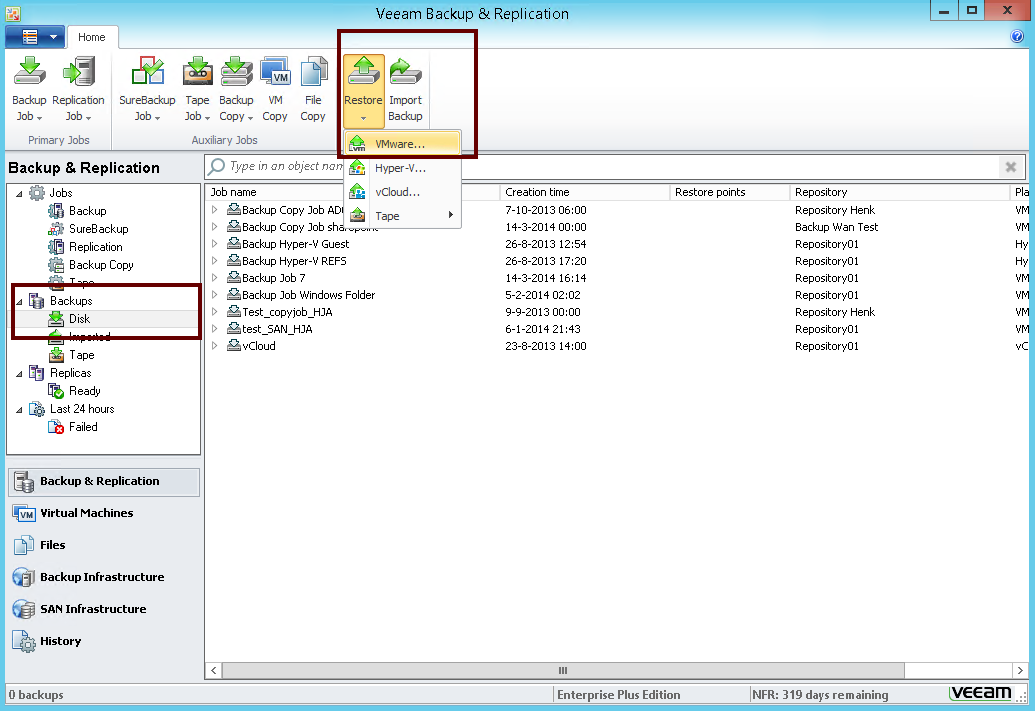
Now how do you get started? Well like with all explorer beta versions (exchange, sharepoint), you will need to start a file level recovery and point to the database. So lets start with the easy part, the file level recovery. Go to the main menu and choose restore.


Then choose to do a windows guest file level recovery


Find your active directory server


And start the guest files recovery wizard


Remember when you click finish, the recovery wizard will start but not any files will be actively recovered to your original machine.


Now you should see the file browser. But actually Veeam mounts the file level recovery under:
C:\VeeamFLR\\Volume

In my case the c: drive is
C:\VeeamFLR\ad02\Volume1

Keep the FLR wizard open during the whole process, otherwise Veeam will dismount the disk.

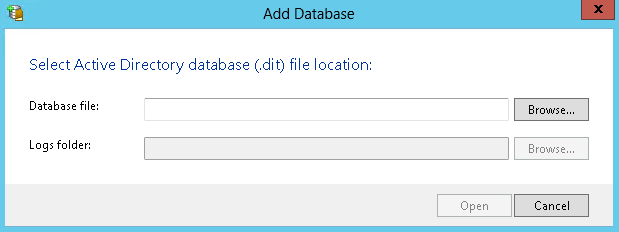
Now start the VEAD and click add database


Now you should point to the the ntds.dit file


I first tried to do a search through "C:\VeeamFLR\ad02\Volume1". This gave me 2 results:


But when I tried to mount the one in system32 I got the following error:


Luckily somebody already posted the solution on the forum. To find the correct path, go to your production server and look into:
HKEY_LOCAL_MACHINE\SYSTEM\CurrentControlSet\Services\NTDS\Parameters

However since my ad02 server is a core server, I created this small script you can invoke remotely to find the path
$server = "ad02"
Invoke-Command -computer $server { Get-ItemProperty -path "Registry::HKEY_LOCAL_MACHINE\SYSTEM\CurrentControlSet\Services\NTDS\Parameters\" }
This should show you the correct path under "DSA Database file"


So this says the file should be under C:\Windows\NTDS\ntds.dit. If we match this to the file level recovery path, we will get something like this:
C:\VeeamFLR\ad02\Volume1\Windows\NTDS\ntds.dit

Now again try to add the database file and point to the correct file:


After loading the db, the VEAD should show you your AD structure:


So lets try to restore a user. First of all you can easily see your attributes by right clicking the user:


Opening the attributes, I was wondering where they hid the recovery for individual attributes. Well it is actually part of the user recovery wizard. So lets follow the restore wizard:


First define the  AD to restore to and the credentials to use


Then specify where to restore the user


In the next step you can decide what to restore


This is the "twist" about the wizard, you can actually recover the user with the password. So if by accident you deleted a user during the night, you can recover him and next day, the end user won't even notice that he was deleted.


 Do you want to enable the account? :)


Final step is to click the restore button.

What is also cool is that not only can you restore an individual user, but also a whole OU if required:


Another great thing about it, is that it should be exchange aware. So if you restore a user, it should connect it to the correct mailbox as well.

So have fun playing with the beta! And remember kids, it's a beta, don't test it in production :)