2014/04/16

Powershell wrapper for Beta Veeam Explorer for Active Directory

The new Veeam Explorer for Active Directory is cool stuff. I blogged about it earlier, showing how you can use it today. However it also shows that some manual steps have to be taken. Well, if you work as a sales engineer, you got to do these demo's a lot, meaning a lot of repetitive steps.

Then today, something on the Veeam forum inspired me. A guy was trying to start a Windows FLR via Powershell. So I decided to make a small wrapper to start the FLR and automate all those manual steps... well it sorta got "out of hands"..

You can get the wrapper script here. Save it on the backup server. Make sure to unblock the powershell script (go to the files properties, under the general tab, just above the ok button there should be some warning about downloaded content). Also make sure you have the correct executionpolicy setup.

Then create a new shortcut. In this shortcut specify the following parameter
powershell.exe -file "[path\to\script]\start-vbradrestorefromlatestbackup.ps1"

You can notice in the screenshot I added some parameters. This is where things got "out of hands".

-server [server] : auto select a certain vm. If you don't specify it, the wizard should propose you all the possible VM's in the backup files known to your backup & replication instance


-latest : auto select the latest restore point. If you don't specify it, the wizard should propose the available restore points for the VM you selected


 -autodiscovery : try to connect to the production server to learn where the ntds.dit file is stored. By default it is disabled and the wizard will use the default path "c:\windows\ntds\ntds.dit". I felt it was safer not to automatically connect to production. Notice that WinRM should be enabled as the script uses invoke-command to read the registry key on the production server.

-autodiscoveryserver [dns production ad] : give the ip or dns name to connect to, to do the auto discovery. If not specified but autodiscovery is on, the wizard will try to extract the DNS name from the restore point or use the VM name as a DNS name

-askcredentials : ask for credentials to do the autodiscovery. If you don't specify, it will just use invoke-command with your credentials.


-filepath : if you want to manually specify the path to the ntds.dit file (assuming you didn't enable autodiscovery)

-adexplorer : if you didn't installed the explorer on the default path

Once you have the shortcut, you should right click it and make sure to run it is as an administrator


If you want to give it a shiny icon, you can do that in the shortcut settings as well. Change the icon and browse to the explorer path. By default it is under "C:\Program Files\Veeam\Backup and Replication\ActiveDirectoryExplorer\Veeam.ActiveDirectory.Explorer.exe"


Now you should be up and running. Just click your shiny new shortcut. It should launch the wizard and automatically load the ntds.dit file after a FLR into the VEAD.


You will notice the Powershell window will stay open. That is because it is waiting for you to close the VEAD and to automatically stop the FLR so that everything is cleaned up as well


2014/03/18

Get even more control over your Veeam schedules

Veeam has a pretty extensive scheduler for jobs. However sometimes customers really want strange schedules to run their backups. I always try to change the mindset. Sometimes they want to have alternating backups just because they don't know the backup copy job exists in v7. In this case, it's like your Santa bringing them a new Christmas present when you explain them that they can actually copy their backups really easily from repository to repository.

However sometimes they have exotic questions. For example we want to run an active full every 2 weeks. Not every week or every month, no every 2 weeks. So what can you do in this case? Well use the Windows task scheduler and some easy Powershell script that executes your logic.

If you want to use Veeam Powershells snapin, make sure you explicitly install it. It is provided as part of the Veeam Backup & Replication installer, but is not selected by default. To validate, just check if you can find the Powershell option in your main menu.


If you don't have it installed, you can fire up the main installer or just locate the corresponding MSI on the iso ":\Backup\BPS_x64.msi"


The most  simple script can be found here:
simplestartjob.ps1

Change the name of the job in the script to match your job you want to start. Then go to the windows task scheduler and make a new task:


Then create a new task. Personally I like to add my Veeam task in a custom folder so that they are all grouped together.


On the general page enable
  • "Run whether user is logged on or not"
  • "Run with highest privileges" : If you want to know why you need to enable this, find more info at the end of the blog article. If you don't care, go ahead and continue

On the action tab, add a new action


Fill the correct setting
  • Program : powershell
  • Arguments : "e:\scripts\simplestartjob.ps1"
 Use the quotes to be safe (for examples if you have spaces in your path


The result should be something like this:


Now create a trigger


You can schedule it daily, weekly or monthly


Finally click ok and enter the credentials.


When the script runs it should start your job


Also I created some scripts in the past for customers:
  • Activefull.ps1 : Active full which should be run on special time. With the windows task scheduler you can say for example first and third week of the month. Alternatively you can do the alternation in the script itself
    • alternate weeks: if( ([int]$(get-date -uformat "%V"))%2 -eq 1) { do_something }
    • alternate days: if( ([int]$(get-date -uformat "%j"))%2 -eq 1) { do_something }
  • Startjob.ps1 : Launcher script. Instead of making a different script for each job, you can reuse the script and give the job name via a parameter
    • Please not that the argument should be something like (single quotes around names). Correct quotes are important "c:\path\to\script\startjob.ps1 'my job name'"
  • Stoptapejob  : Stop tape job after a certain time. Customer has a single drive and tape job "hang" if there is no drive in the slots and he was canceling them manually every day.

Why I need to run with highest privileges
Actually if you just open a powershell prompt in non-admin mode and admin mode you will see why


When you run in non-admin mode you will get a SQL error. Actually it is not really about admin mode but more about the fact that the current user doesn't have access to the database. It is actually the same requirement, when you want to give users fine grained access to the GUI. So first of all make sure you setup the correct permissions in B&R itself (Main menu>Users and roles)


Next to that, users also need permissions to the database that is behind B&R

If you give the user db_owner on the Veeam db, it should work as well


2014/03/17

Test driving the new Veeam Explorer for Active Directory

If you are a Veeam fan, you certainly need to read the word of Gostev. Basically you enroll  on the forum and every week you will get a mail from the forum containing the word of Gostev. He is the product manager for Backup & Replication and if you want to be the first one to know all about the new stuff in IT (not only Veeam), you'll see that this weekly mail avoids you reading 25 blog articles a day (quote I borrowed from one of my colleagues ;)).

This week wasn't any different. Veeam launched the public beta for the Veeam Explorer for Active Directory. So what is the big difference between the AD AIR wizard and this one? Well you don't need to power on a virtual lab to extract a single user. Instead, Veeam will read the ntds.dit (ad database file) directly via a file level recovery. This reduces recovery time drastically. The coolest part? It's a public beta, so everybody can test it!

So how do you get started? Well you will need a Veeam Backup & Replication server v7 installed. Then you can download the beta via the forums:
http://forums.veeam.com/veeam-backup-replication-f2/veeam-explorer-for-active-directory-t21038.html

Basically, you will get a zip file and in it is an MSI installer you can just next-next-install.


After that you should find the VEAD in your start menu


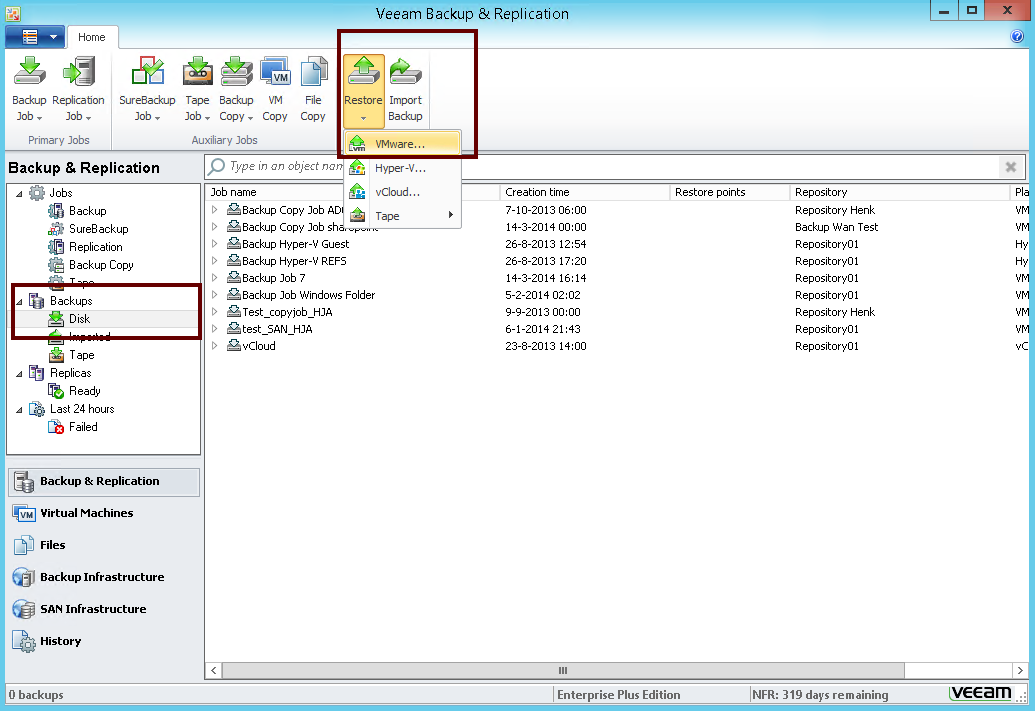
Now how do you get started? Well like with all explorer beta versions (exchange, sharepoint), you will need to start a file level recovery and point to the database. So lets start with the easy part, the file level recovery. Go to the main menu and choose restore.


Then choose to do a windows guest file level recovery


Find your active directory server


And start the guest files recovery wizard


Remember when you click finish, the recovery wizard will start but not any files will be actively recovered to your original machine.


Now you should see the file browser. But actually Veeam mounts the file level recovery under:
C:\VeeamFLR\\Volume

In my case the c: drive is
C:\VeeamFLR\ad02\Volume1

Keep the FLR wizard open during the whole process, otherwise Veeam will dismount the disk.

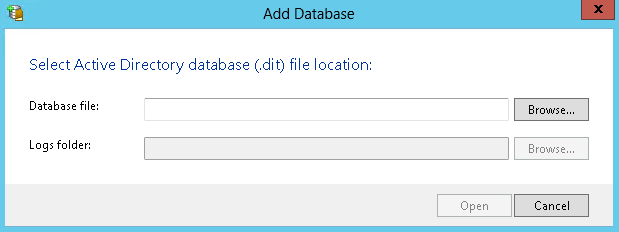
Now start the VEAD and click add database


Now you should point to the the ntds.dit file


I first tried to do a search through "C:\VeeamFLR\ad02\Volume1". This gave me 2 results:


But when I tried to mount the one in system32 I got the following error:


Luckily somebody already posted the solution on the forum. To find the correct path, go to your production server and look into:
HKEY_LOCAL_MACHINE\SYSTEM\CurrentControlSet\Services\NTDS\Parameters

However since my ad02 server is a core server, I created this small script you can invoke remotely to find the path
$server = "ad02"
Invoke-Command -computer $server { Get-ItemProperty -path "Registry::HKEY_LOCAL_MACHINE\SYSTEM\CurrentControlSet\Services\NTDS\Parameters\" }
This should show you the correct path under "DSA Database file"


So this says the file should be under C:\Windows\NTDS\ntds.dit. If we match this to the file level recovery path, we will get something like this:
C:\VeeamFLR\ad02\Volume1\Windows\NTDS\ntds.dit

Now again try to add the database file and point to the correct file:


After loading the db, the VEAD should show you your AD structure:


So lets try to restore a user. First of all you can easily see your attributes by right clicking the user:


Opening the attributes, I was wondering where they hid the recovery for individual attributes. Well it is actually part of the user recovery wizard. So lets follow the restore wizard:


First define the  AD to restore to and the credentials to use


Then specify where to restore the user


In the next step you can decide what to restore


This is the "twist" about the wizard, you can actually recover the user with the password. So if by accident you deleted a user during the night, you can recover him and next day, the end user won't even notice that he was deleted.


 Do you want to enable the account? :)


Final step is to click the restore button.

What is also cool is that not only can you restore an individual user, but also a whole OU if required:


Another great thing about it, is that it should be exchange aware. So if you restore a user, it should connect it to the correct mailbox as well.

So have fun playing with the beta! And remember kids, it's a beta, don't test it in production :)


2014/02/27

Stop duct taping your IT infrastructure : Is Veeam enterprise ready?

FYI, this is going to be a rather long article. In fact, I think it could be more thought of as a white paper. However I feel that a white paper would block my creativity and will not allow me to tell my not so unbiased opinion. So whatever opinion I express here is my personal opinion, not per se the opinion of my current employer.

So the question I am often facing is "Is Veeam enterprise ready?". Honestly I think it is in a modern environment. However sometimes it is too painful to be honest to customers. So I'll just discuss some statements I hear while talking to customers and what are my answers to them. However before I do that, let me start with a small issue I am facing today in my daily life.


In my daily life I drive a Volkswagen Golf. In 99% of the time it is the perfect car for me. The reasons are simple:
  • I drive a lot alone so don't need a lot of space
  • It can drive on highways and it can get me everywhere
  • It is reliable 
  • It is not too expensive and since I am not a car freak, I kinda like it. It's that good balance between "I need to compensate for something" and "I don't care what it looks like, if it drives, it drives"
  • It can seat 4 people comfortably
This week I am facing a challenge though. I need to transport a rather big package and will be unable to fit in my Golf. This happens to me once a year. So actually the car doesn't fulfill my needs 100% of the time. So I have been thinking about this sweet baby below


  • It can drive me
  • It can do highways
  • It should be reliable (I hope)
  • It can fit more then 4 people
Additionally
  • Once a year I can go camping in this baby! I love camping!
  • I can move stuff really easily
So on paper it seems the perfect car. It can do everything, so why not buy it? Well lots of hidden daily costs for something I will only need 1% of the time:
  • Mileage per gallon will be horrible. Damn I hate physics and friction!
  • Taxes in Belgium are awful, imagine what this will cost me per year.
  • Although it will get me everywhere, visiting my customers in Brussels will be painful. Imagine having to park this monster.
So next time you buy a new car, don't buy a big car just because you need it once a year. In my case, I will have the package home delivered. It will cost me a bit more money but not in comparison with this sucker. As a bonus, it's a service, I don't have to do anything. But what does this have to do with backup? Let me come back to that one :)

Veeam and Physical machines? :
Answer is simple, Veeam doesn't do them. Please start by virtualizing all your servers today! There are no real good arguments not to do it. Often the argument is performance. Well, honestly, performance is not the issue. What is the issue is that you are over-provisioning your virtual environment and mostly don't have the I/O on your storage to allow for good performance. Sometimes I get the argument that local disks have lower latency. True, it's all about physics again but then again, there are great modern solutions like Nutanix, VSAN or PernixData that are taking away that pain by doing server side caching.

So virtualise them all! Often I hear people want to set up private / public clouds (cause it is the big buzz word). Well IaaS is the only cross-platform, cross-application solution that can offer true cloud solutions. So if you want to be cloud ready, this is the way to go. Decouple your machine from physical boundaries. Not only will you free up wasted resources but more importantly:
  • You don't have to set up horrible difficult cluster solutions to have HA. In fact I recently had this discussion with a partner. Most of the times clusters are so badly managed and configured that they are causing more downtime then that they offer high availability. Also they bring a lot of nasty requirements that makes administrating them a hell. On a side node, stop using Physical RDMs. These arguments are invalid:
    • Clusters: Read above!
    • Performance:VMware released a white paper 5 years ago (ESXi 3.0) saying you don't gain any performance by using RDMs
    • VMDK Size: 62 TB not big enough?
  • Your disaster recovery plan will be so much easier cause you are not locked down to a physical server
  • Your physical migrations projects will be so much easier. Nothing easier than storage vMotioning a VM to that brand new SAN box you bought.
The best bonus? You can backup up your machine with Veeam B&R and if needed restore it in 2 minutes via Instant VM Recovery! I challenge you to do that with a cold standby physical server. The most extreme example I ever heard was a bank that had a dedicated physical server for certain VM's (1 VM = 1 Physical Machine). They didn't care about optimization of resources but rather wanted all these business continuity features.

But I have this SQL physical server : 
Let it dump a backup on a CIFS / NFS share that is hosted by a virtual machine. Even better, stop duct taping your infrastructure and virtualize that load already. You are trying to patch an old setup instead of letting it evolve.

But I have this SQL physical server and I don't want to workaround:
Use file to tape to copy your MDF/LDF files  or your backup file to tape on a daily basis. In fact this is a feature not a lot of people know exists. Veeam actually allows you to backup files to tape from (physical) machines. Even with VSS intergration

However, tape is not made to handle a lot of small files but rather likes big files to stream nicely to tape. It is why Veeam doesn't backup VM's directly to tape but rather put  backup files on tape. So if you want to use it for a physical server, only do it for your big files that contain the data you care about. Those Windows DLL's are really not that useful.

Most painful aspect of this approach? What if the server crashes? You will need to reinstall it, reinstall the application, import the data and hope it all works! Personally I wish you good luck!

Or you could just virtualize the load and even test if your backups can be successfully restored with Surebackup. In fact, for some enterprise customers, Surebackup is one of the main reasons they switch to Veeam. They have the requirement to do recovery tests whether it is by law or company policies. However they don't have the storage nor the man power to do it on a monthly basis. Well guess what, Veeam can do it automatically for you without requiring any extra storage. That is what I call being enterprise ready.

When you will release a Veeam Explorer for Exchange 2003 (and other legacy applications questions):
Well this is the bad thing about virtualization. It has allowed for legacy applications to stay around for waaaaaaaaaay too long. With physical servers, migrating the workload was often combined with executing an upgrade (add a new node to the domain, then demote the old node). Unfortunately, vMotion has made it so easy to migrate that people are just moving the VM's to newer physical servers.

Even worse, when people start virtualizing they use VMware Convertor to P2V. Honestly these are the worst migrations. You have no idea if it will work correctly afterwards, you get stuck with IDE drives and you are duct taping again instead of evolving. I always tell customers, to do a clean installation of the OS and application. Then export and import the data (or add and demote). The one time effort will be bigger but later on you will reap the benefits.

So now once in a while I get the "is it supported" question about Exchange 2003 or SQL 2000. What about them? Why doesn't Veeam support it? Well actually the real question is, why are you still running it? Even Microsoft doesn't support the application itself, so why should a third party tool support it?:
But the real kicker is that you can actually backup these machines with Veeam. SQL 2000 for example can use the MSDE writer. And you can use file level recovery or U-AIR to recover data. Is it the best solution? Of course not! So stop duct taping your infrastructure. If you still run SQL 2000 it means you are running on a 14 year old technology. I know administrators are lazy but that means you haven't done any work on that machine for more then a decade...

The worst argument I heard was "Yes but our application requires SQL 2000". Please replace your application then and stop duct taping! If this vendor doesn't support 2008 or 2012, it is not worth your time. I'm sorry but it's true!

What about tape?
We have it in v7. Did I get excited when Veeam announced tape support? Not really but a lot of customers where asking for it cause they need cheap long time retention media or because they have "company requirements that state ...". Well sometimes you need to evolve your requirements. But anyway so Veeam has it, so making the product more enterprise ready!

Scalability?
Sometimes I see customers complaining that Veeam doesn't scale well. If I ask them about proxies, they have never heard of it or only installed one. If I ask them about backup storage they have a cheap NAS solution with 5 disks in RAID 6. Well, I'm sorry to tell you, your backup storage is the bottleneck, not Veeam.

Veeam is an easy solution but in enterprise environments, you really need to think about architecture, even for Veeam. If you want fast backups, you need the hardware to support it.

Besides in many Enterprise environments that use legacy agents based backups, Veeam will drastically reduce backup windows. There are even extreme examples of environments going from 48 backup windows (which doesn't fit in 1 day) to 2 hours. That's what I call enterprise ready.

Mixed environments: What about my AS400 or HPUX?
So this arguments, I see a lot. Often a customer has one legacy device running a core application. Somebody set it up 20 years ago, nobody knows how it works but it is really critical. Well maybe it is time to migrate that badboy to an x86 VM. Yes I know it is expensive but you will have to do it one day.


Essentially, this is what you are doing, you are ignoring the problem and making it worse. Sure add more duct tape and it will hold a bit more. But one day it will fail and it might be the end of your company.  So before all COBOL experts are dead, please migrate those critical applications while you still can.

Mixed environments: But I don't want to use 2 solutions
Well this argument is the worse. Often people will argue they have to install 2 applications. Well lets say you buy product x which has a plugin for VM's. Well in this case you will have to install and configure the main application and the plugin. Veeam is so easy to install and configure that I bet you it is easier to setup then the plugin itself. In this case you will end up with:
  • Veeam for 95% of your machines
  • Product x for that remaining 5% of your physical legacy machines, which you will migrate in the end anyway and not having to configure any plugin
Also from a daily management perspective, this won't create extra management. The time you invest in configuring and maintaining that horrible plugin, you can use to manage Veeam.

In fact, Veeam can be configured to seamlessly backup all your VM's in your environment. Because instead of selecting individual VM's, you can just backup resource pools, host and folders or datastores. When new VM's are created they are automatically being backed up by an existing job. What automagically?! You heard that right, it means you can refocus your time on innovative stuff instead of duct taping your daily backups. In environments with hundreds VM this is really a game changer.

So daily cost (opex/managemet) is not the issue. But what about licensing?

Well  all backup products are capacity based in some way (node, application, socket, tb, ...). Well because you only need to  license 5% of your old legacy environment, 95% of the budget will be free to buy Veeam licenses. And boy are you in luck! Veeam is affordable and doesn't have any hidden costs. You have 3 ESXi hosts? You license the ESXi sockets! That's it.
  •  If you want to run 1 VM or 100 VM's or 1000 VM's on those hosts, Veeam doesn't care.
  •  If you need to deploy new VM's to meet new business challenges, you don't have to worry about backup licenses, you will always be compliant. 
  • You want to deploy 5 SQL servers instead of 1 to split the load? Well no need to count and report those nodes, cause it doesn't matter. You have Exchange and/or Sharepoint? It's okay, you don't need to license any applications separately/
That's what I call cloud and enterprise ready licensing. Far to often licensing will kill innovation but no longer with Veeam. Some vendors have started making a sport in doing compliancy checks. If they would focus that effort on building a better product, Veeam could actually get some competition that is worth investigating.

What is the reality? CxO level persons look at "requirement" and they rather buy the "truck/van" instead of buying the golf. The result? A lot of frustration and OPEX costs afterwards. RFP and Tenders are the worst tools ever for IT decision makers because everybody can offer some form of "instant recovery" like bare metal recoveries. The reality is that these features are most of the time horribly implemented and are just not working. Test driving Veeam really helps selling the product, because people just can't believe that it actually does what it promises.

Finally because Veeam is cut out for the job, it will do fast backups and will offer advanced functionality that is just not possible if you do things via an agent based approach. The reason is simple, Veeam is not a duct tapped backup solution but rather a modern data protection product. It can keep up to speed with VMware (ESX) and Microsoft (HV) release cycles because that is the main focus.

So don't buy a product that focuses 95% of its effort on 5% of your environment, but rather buy one that focuses 100% on 95% of your environment and try to evolve that other 5%.

So is Veeam Enterprise Ready?
Well Veeam is Enterprise ready! If it can't fit in your environment, it means you need to rethink your architecture and evolve it so that your architecture is up to par with the latest standards (Or at least not running 14 year old technology)


So stop duct taping today and get ready for some real modern data protection!

2014/02/17

Veeam improves backing up VMs running on NFS

Working with Veeam Backup & Replication allows you to protect VMs in a very efficient way. Reading the data is done completely agentless and so all data is fetched via the hypervisor. For VMware, there are 3 ways of reading the data (Transport modes):
  • Direct SAN: Reading the data at the block level or in other words reading the data directly from the VMFS volumes. This is the best method as you don't consume any CPU or Memory of the production environment.
  • Hot-Add or Virtual appliance mode: Adding the VMDK of the VM you are trying to backup to a proxy VM. In this case your proxy must be a VM residing in the same cluster as the original VM. Notice that the proxy will consume CPU and Memory of the production cluster as it is a VM in the end. Most of the time this is not an issue because the backup process runs during the night.
  • NBD or Network mode: Reading the data via the vmkernel port. This is the least efficient method. However it is popular because 
    • It's super easy to setup. If the proxy can talk to the ESXi management kernel, it is setup.
    • It works good on 10GB networks
Roughly the order of picking the most efficient proxy with Veeam will be SAN > Hot-Add > NBD  for obvious reasons.

When you are looking at NFS there are only 2 options left, Hot-add and NBD. However, due to NFS v3 locking mechanisms, customers are only left with NBD as the only viable solution. What's the problem? Well if the proxy and the VM you are trying to backup are not on the same host, you might experience stuns when the VMDK is released after the backup. This is not a Veeam problem. In fact VMware has a nice kb article, you can find here:http://kb.vmware.com/selfservice/microsites/search.do?language=en_US&cmd=displayKC&externalId=2010953

VMware suggest 2 solutions:
  • To work around this issue, ensure that the virtual machine resides in the same host where the backup appliance is installed.
  • Alternatively, you can use LAN/NBD transport that uses the NFC (Network File Copy) in your backup solution or disable SCSI hot-add through the backup software.
So most of the customers forced their proxies to use NBD so that they didn't have the stuns in favor of less efficient backups.

They could also make one job, tie it to one or two VMs and couple it to one proxy. Then using DRS affinities rules, you could keep the VMs and the proxy together on one host. Needless to say this approach is horrible from a management perspective

With the release of patch 3 (v7), however, Veeam has worked around this VMware issue. If you have NFS (Netapp, Nutanix, etc.) , please go to the patch page and download it now! :D

After you have installed it, you can use the following registry key:
EnableSameHostHotaddMode (DWORD)  : Intelligent load balancing can now be configured to give preference to backup proxy located on the same host

So you will need to enable the key in the registry. All our keys are stored under:
HKLM\SOFTWARE\VeeaM\Veeam Backup and Replication

Create the DWORD key there and set it to 1.

Once you have done this, you should create a proxy VM on each host in your cluster. Personally I have always felt that Windows Core Edition is perfect for this job. It installs quickly, doesn't consume any unnecessary resources and the Veeam proxy doesn't have any GUI anyway. Also, disable DRS for this VM so it stays on its corresponding host. Alternatively, install it on a local drive. Most server have a local disk that your are not using because you want your VM's to be mobile. In this case, this is what you are trying to avoid.

I also wondered, what will happen if the proxy is already busy with another task. However I got the feedback that Backup & Replication will wait forever for a proxy to become available, that is residing on the same host as long as there is a proxy online that can do Hot-add. Only if there is no Hot-add proxy or they all are offline, Veeam will switchover to NBD.