2015/08/05

A brief history of the Restore Point Simulator

During the development of the restore point simulator, I often have encountered questions from users that led me to believe that it is not always clear how to use the tool and what it can do for you. In this blog article series, I want to take the time and explain you  why RPS was developed in the first place and how you can use it.

In the beginning there was nothing, just our famous formula to calculate repository spaces. I'll quote it here because it is still the main idea behind RPS. Many Veeam SEs had there own excel configuration sheet to quickly spit out some numbers, some more pretty than others.

Backup size = C * (F*Data + R*D*Data)
Data = sum of processed VMs size by the specific job (actually used, not provisioned)
C = average compression/dedupe ratio (depends on too many factors, compression and dedupe can be very high, but we use 50% - worst case)
F = number of full backups in retention policy (1, unless backup mode with periodic fulls is used)
R = number of rollbacks (or increments) according to retention policy (14 by default)
D = average amount of VM disk changes between cycles in percent (we use 10% right now, but will change it to 5% in v5 based on feedback... reportedly for most VMs it is just 1-2%, but active Exchange and SQL can be up to 10-20% due to transaction logs activity - so 5% seems to be good average)

This formula has some difficulties. First of all the (C)ompression ratio and the (D)elta are difficult parameters to estimate but it does give you some hints what we at Veeam use inside and a fairly good explanation why these values are chosen. But more difficult are F and R. These values define how much full backups you will need or how many incrementals you need. With reverse incremental / forever incremental, that is quite easy to calculate, you'll have F = 1 and R = rps - F. 

However when you talk about weekly synthetics or active fulls, the number is rather difficult to calculate. Even Veeam users do not always understand the effect of a certain policy. For example, if you configure a forward incremental with weekly full and 2 restore points (rps), you can expect up to 9 rps, because of dependencies. I had countless discussions with customers arguing that Veeam did (does) not respect their rps policy, when in fact it does its absolute best to respect your policy. If you run the simulation, you can actually see the dependency. In the fist column (called Retention), you will see something like 3 (2) or 4 (2). This means that point 3 or 4 are both kept because point (2) is dependent on it.

Now if you want to excellify this, you can come up with something like F = #Weeks + 1, R = (F*7*#DailyBackups - F).  Imagine 14 rps with daily backup, that would be F = 2+1 =3 and R = 3*7*1 - 3 = 21 - 3 = 18. Well that would be really close to what RPS says, but explaining that to people does take some time and it is not always accurate but more guesstimation.

Another common misconceptions is that a monthly backup would require less space than a weekly backup. While this can be the case, remember that a monthly backup would create a chain of 30 points. If you configure a policy of 14 points in forward incremental with monthly full, the worst case scenario would be 12 days after a second full backup is created. This because you got 12 increments dependent on the current full, but you need to keep the whole previous chain, because the oldest restore point is an increment dependent on a previous full backup and a chain of 30 increments. If you configured weekly full, a chain would be maximally 7 days, so less would be stored. This can exponentially grow when you do for example a backup every 12 hours or even more. However if configure for example 60 restore points, a monthly full backup can be cheaper than a weekly full backup. The more days worth of restore points configured, the more likely a monthly full backup will actually consume less space.

These 2 examples, show exactly why RPS was made. Different customers cases require different approaches. Also, it reconfirms that assumption is the mother of all mistakes. So explaining how retention works without very difficult formula's was actually my main goal when the first edition of RPS was made.

Another example is my new all time favorite that shows why what feels natural is not always reality. Some months ago, a partner thought a forever incremental backup chain of 365 would be more efficient than a GFS policy with 12 fulls.  This even surprised me the first time I ran it because incremental backups feels more lightweight. I remembered from my v7 SE training that GFS should be more efficient, but just running the simulation reconfirms this.

It is true that forever incremental versus weekly full is so much more efficient in terms of disk space savings. However 30 incrementals, quickly add up and for long time retention, a monthly full could be more efficient. There is one caveat. With 365 increments, you do have more granularity than 12 full monthly points in time. However, I do want to remind you that those 12 full backups are completely independent of each other. So a single bit rot corruption would only impact one point, while in a 365 restore point chain, this potentially impacts the whole chain. So I think in the majority of cases the more efficient disk usages and the in-dependency of points is better than a very long chain of increments, but hey, it is up to a company to decide their policy.

Finally, I remember one of the major updates was adding GFS support. Calculating and explaining GFS policies is nearly impossible with Excel. Why? Imagine you configured weekly backups to keeps the restore points of Sunday and you configure monthly backups to keep the restore points of the first Sunday of the month. In this case, the first Sunday of the month backup, could be used to satisfy the weekly backup policy as well as the monthly backup. In fact this is what Veeam does. So if you configure for example, 12 weeklies and 3 monthlies, you would assume that the amount of full is 12+3+1 (1 for the simple retention policy). However this is not the case. If you configured your policy correctly so that weekly and monthly points can coincide (schedule button), you will actually get less points. You can see this common points again in the retention column. "10W 3M 0Q 0Y" means that it represents the 10th weekly point but also the 3th monthly point.

@poulpreben (if you don't follow him on twitter, do it now) and I spend hours discussing how we could calculate this with formula's. We concluded that the only way to actually do it was to emulate what happens inside B&R on a daily basis for some time. In fact that is what RPS does. If you configure a retention policy, it will try to predict a period of time in which the worst case scenario should occur (most data on disk). This is why, when you configure 5 yearly backups, it takes some time to calculate, because it will run over 2000 days trying to simulate the behaviour of B&R.

So TL;DR? Don't just assume, run it through RPS. Be critical with the results of RPS (Software can contain bugs) but also try to understand why something is different than you first estimated.

2015/05/05

Veeam Job Managers, Veeam Agents, Tasks and more..

One of the most common statements I hear is that Veeam is good for SMB. Maybe with good reason. The GUI is simple and sleek. It doesn't require you to study 2 weeks just to install and configure some jobs. This was done by intention and makes it a good solution for SMB, but not exclusively for that segment.

A lot of green magic is going on under the hood. The application is created so that it works out of the box in smaller environments. However, when you are in a bigger environment, it might be interesting to dig a little deeper and understand the global architecture. Most of the problems I see when talking to people are just mis-configurations or not understanding how it all works together.

When I start talking about proxies and repositories, to my surprise, I still see a lot of people wondering what it all means. Hopefully after this blog posts, or everything is clear, or you are so fascinated that you want to know more.

Before we think about backup, let's look at the scalability of a movie theater. If we look at people handling the ticket process, we can see a couple of people that are important.

First of all, we have people that are selling tickets. They are actually executing all the hard work. They do a constant repetitive process of taking money and exchange it for a ticket. There job is fairly simple in what they need do, but they are quite busy.

At the gate of the movie room, there is somebody checking those tickets, and letting people inside the room. Maybe they can handle multiple tickets, but only person (or group) is allowed into the screening room at the time because otherwise it will be all messy. It is clear, that scanning or checking a tickets is a much simpler process then selling the whole tickets. Less interactions is required. Thus the ratio, cashiers vs doormen is different

At the heart of the system is someone that regulates the whole chain, let's say the floor manager. He decides where cashiers are sitting and thus in effect which customers they are handling. He is instructing the doormen when they need to come to work and when they can take a break. Most importantly, he is not doing any of the real physical work but it is the brain of the operations.Without him instructing, nobody isn't doing anything.

Scaling out is easy. If you run a small theater, you might have only 1 person doing all the jobs. This of course simplifies stuff. However people are not so good in multi threading. So if you need to scale out, you can just hire more cashiers and doormen. These do the hard physical work but require minimal training because they just repeat the same job over and over.


Well Veeam has a very similar chain of responsibility. They are not always apparent but scale out is possible. So how does a movie theater map to Veeam? Well in v6 , Veeam introduced Veeam Agents (VA) or Datamovers (Enterprise Scalability). These small binaries are like the cashiers and doormen. Actually a VA has the logic for both being the doorman or being the cashier at the same time. Still these routines are pretty simple and the Veeam Agent does not have any GUI or anything.

So what do VA's do. Well the task or source agent will read the data from production, execute compression and vmdk level deduplication and send it to the job or target or job agent. The job agent takes the data, deduplicates at the job level and writes it to the backup file. Above it all is the job manager. It will instruct task agents and job agents to work together. However except for scheduling work, it is not really interacting a lot with the VMDK data itself. It just checks that all VM's and VMDK's are succesfully backed up that are configured in this specific job. Don't confuse the job manager with the backup server itself. The Job Manager is just middle management. It is the backup service that will notice that a job is ready to be scheduled. But instead of handling multiple jobs itself, it delegates this to different floor managers. However, he has the overview of theater and ensures that everything is running smoothly.

Already we can see a couple of interesting stuff:
  • A source agent handles individual VMDK's
  • The target agent takes multiple VMDK's or tasks for that specific job and writes it to one file. The reason is quite simple. Writing from multiple process to one file can create a lot of confusion about who is updating one segment of the file, especially if we look at metadata updates. Also job level deduplication is quite difficult if different process are writing to the same file. In case you need multiple streams, you need to power on multiple jobs at the same time.
  • The Job Manager runs on the backup server
  • The VA's can run on separate servers, called proxies or repositories. However, for VMware environments, by default Veeam creates a proxy server and a repository server on the main backup server itself. This gives the impression that Veeam is not scalable because it works out of the box. Don't be confused, if you want to run everything on one physical big physical servers, that's fine. However the scalability is there. For Hyper-V environments, Veeam will actually put the VA on the Hyper-V host itself by default. This is what is called an "on-host" proxy.
  • I once got the remark about a customer that he needed an VA for each VM he had in his organization. This is of course not the case. It would be ideal of course. Imagine that you go to the movie theater and that for each customer there is a cashier. That means you will never ever have to queue. However, we all know that is not how it works. When a customers enters, it queue in one of the available lines, and it when it is his turn, he will be served. Even better, maybe there is somebody at the front checking the available resources and then balancing the load over the available queues. Same   for Backup & Replication, you will need an amount of VA's and Veeam will load balance the load over them in a smart way.
  • Maybe not so clear, but after the all visitors went into the screening room, the door needs to be closed so that no light and noise from outside the room goes in. For Veeam, it is the same, the job is not over after all VMDKs have been backed up. The job agent still needs to consider retention. If you configured 14 points, but after the backup, 15 points are on disk, maybe some clean up action is needed. Since the job agent is close to the repository, it will be the one deleting the files, executing merges or synthetic fulls.
  • A VA for Windows can be a proxy and a repository. A VA for Linux can only act as a repository. Finally you can imagine that you can not run the job agent on a CIFS repository. So Veeam picks out another server automatically to run the job agent. Sometimes, this green magic, does not 100% have all the information it needs to make a rational decisions. Imagine the CIFS share is on another site, and the connection between both sites are limited. In this case it makes sense to run the Job agent near the CIFS share so it can do the merge or synthetic full locally. So if you have multiple sites, it might be wise to configure the gateway server manually (aka, where do I run the job agent)
Another thing that might be interesting to know is that the VA is just a simple binary. It is not being loaded as a service. So how does it get started. Well that depends on the server. For Windows, when you add a repository, the first thing you actually do is a add a "managed server". Adding a managed server for Windows means Veeam will pus:
  • An installer service : to install or update the transport service
  • Transport service : the service running on a windows managed server that kickstarts the VA
You can also check this. If you already configured windows backup proxies and repositories before, you can go to backup infrastructure. Under managed servers, you will see your proxies pop up. If you open up the GUI, you can see under ports, the installer service and the transport service. On the server itself, you will be able to see the Veeam services as well via the services.msc.

Pushing those services is done via the administrative share. However, if due to security configurations, you are not able to do so, you can actually manually install "the installer service". Support can help you with this


For Linux server, Veeam just uses SSH to upload the agent and start the agent dynamically. SSH is a pretty stable protocol for uploading and managing Linux server. This way, Veeam doesn't have to integrate with the different init.d, upstart, etc. mechanisms.

So for this part, lets put all this info into practice. On a Veeam Backup Server with default proxy, I started two jobs


Then I started a small script I wrote to monitor Veeam processes .


First of all, you will see a lot of green magic going on. I'm not going to discuss all the services now but maybe pick out some specifics.

The first one with ID 11604. This is the Veeam Backup Service or the local branch manager. It is started at boot time (parent is the services.exe daemon).

The next 2 processes are job manager. We have two Jobs running so of course, the backup services has started two floor managers to handle those. You can see them with ID  87228 (Backup Job Linux) and  84604 (Backup Job Windows). How do I know they are corresponding to those jobs? Well in the command line, there are random hashes. The first one is actually the Job ID, which you can find in the logs. For example, at the end of the Backup Job Linux log I found
Job has been stopped successfully. Name: [Backup Job Linux], JobId: [82062049-544e-44fc-9bb8-f3727e3464ac]
The second one is the Session ID, which changes every time the job runs. You can also find these IDs in the database. For example, if you need a reference table, you can check BJobs for the matching job ID vs job name

Since I'm running everything on the same server,  you can also see the VAs. You will that there are more VAs active than described above. For example per VM there is also a VA running. But let's check the ones we discussed.

For proxy VA's, you can check ID 85072 (sharepoint vmdk) and 86760 (ad vmdk). What I like is that you can also check is where they are running and logging to. Also, it is important that even though they are running on the backup server, they have not been started by the backup server but rather by the VeeamTransportSVC daemon. So the job manager has contacted this Transport service to kickstart the whole process. Finally, although the Linux Job was running, it didn't have any resource ready to backup the VMDKs (proxy slots) free.

At the target side you can see the target agent or repository agent running with ID 87744 (Backup Windows Job) and ID 86656 (Backup Linux Job). As discussed, there is only one target writer for every job.

2015/04/09

Veeam Data Domain integration X-Rayed

With the latest release of v8, Veeam introduced Data Domain integration. The integration is based on DD boost. But what does that actually mean. Well it means we will do faster backup copy job (and backups) towards a DD.

So what's so good about the integration? First of all Veeam supports "Distributed Segment Processing". The basic idea that Veeam will do the Data Domain deduplication at the Veeam side. The main advantage is DD deduplication is global dedup. If you have for example 2 backup copy jobs, copying each 1 windows VM without DD boost, Veeam will send over the OS blocks 2 times. Simply because they are different jobs.

With DD Boost, when the gateway server (the component that talks DD boost), has to store a second copy of the OS blocks, it will send pointers down the line because it knows that the Data Domain has already stored those duplicate blocks. The main advantage is that there will be less network usage and the DD doesn't have do any processing anymore. Hence the term Distributed (=each client) Segment (chunks of data) Processing. Also the job performance might boost significantly because the second time those same blocks need to be stored, there is no real write occurring on the Data domain, just a meta data update.

Although most people focus on this part of the DD Boost integration, that's not my favorite part of the integration. So in this article I want to focus on "Virtual Synthetics" and what it means. To understand the benefits. Lets first look at how a backup copy job works.

First of, the backup copy job or bcj doesn't copy files. It copies data and it constructs new backup files at the target side. So if you use forward incremental, reverse incremental or forever incremental, the result of the bcj will always be the same. The bcj uses a similar strategy as forever incremental. So lets take a really trivial example. Imagine you created a bcj with a retention of 2 points.

The first day you will create a full backup file.

The second day, you will create an increment file and store only blocks that have changed. No rocket science so far.
The third day, you will create another increment. However 3 points are more than the configured policy of 2. So some action is required.
Just deleting files is not an option. You can not delete the oldest backup file because it is the full backup. This is why the backup copy job does something called a merge.
The idea is that you take the blocks from the oldest increment, read them from disk and then write them back to the original full backup file, essentially updating the changed blocks in the full backup file
The result is that the full backup file is actually representing the restore point from day 2 and so the amount of backup files equals again the retention policy you configured.

But why is that bad for Data Domain? Well Data Domain was designed for sequential write. In fact, it was created to replace Tape and that is why most dedup devices have a VTL functionality.

With tape in mind, remember those old VHS cassettes? If you record one soap (different episodes) on one tape in chronological order and one day you want to binge watching the soap, you could just put in the cassette and push play. No delay when switching episodes, because it is just steaming the tape.

However, imagine you are going out and different members of the family recorded different series and movies on one cassette, when you wanted to play your specific part, you needed to skip back and forward to get to your part. This took some time cause the tape needs to go to that specific point in time.

Benching or just playing the video, in data terms is what we call Sequential I/O. You just read the data in the chronological order that you have written it. Skipping back and forward  to read (or write to) that specific part you need is what is called random I/O. And as with tapes, it is pretty slow. Now if you design your device to act like tape, you can write really fast, but the random I/O kills you.

Well this is why bcj merging is actually pretty slow on deduplication devices in general. It is a lot of random reading and writing to files. So how does DD boost help here? First of all you should understand that DD has meta data where it stores pointers to the data blocks that make up that specific files. But let's not go into too deep how a filesystem works, you got wikipedia for that

When DD boost is being utilized, Veeam will not read block a', d', h' and l' and then write them back to the DD as it usually does. Instead, it instructs the DD to point to the blocks already on disk
Because you are just writing pointers, the "merge process" is fast compared to the regular standard merge process.

So this make the Data Domain an excellent backup copy job target. Especially because you can define GFS on the bcj. So imagine you instruct the bcj to keep 6 weekly backups, you will actually have 7 full backups on the DD, one for every week and one active VBK.

One thing that does not change is the restore time. Veeam restores are pretty random, especially if you need to read from different files. Imagine you have a chain of 14 points, and you want to restore something from the newest point, with the backup copy job, that would mean accessing 14 different files in the background.

If you ask me, I think the DD is an excellent bcj target. Just keep a small amount of files on jbods for example (for example 7 to 14 points), which are excellent in handling random I/O, and then tier them to a DD. If you chose your policy correctly on the main target, 95% of the restores will come from the first tier. However if something bad happens and you need to go back a couple of months, it is acceptable that the restore might take a bit longer in favor of the huge amount of restore points you need to keep. For Veeam, this is actually the preferred architecture

2015/01/21

Microsoft iSCSITarget massive add initiators

If you ever need to add a lot of ip address to an iscsitarget in Microsoft, here is a sample script
$tgt = Get-IscsiServerTarget -targetname "vmware01"
$inits = $tgt.InitiatorIds
(10..20) | % { $ipend = $_;$ip = "192.168.253.$ipend";$initnew = new-object Microsoft.Iscsi.Target.Commands.InitiatorId("IPAddress:$ip");$inits += $initnew }
$tgt | Set-IscsiServerTarget -InitiatorIds { $inits }
This will add ip range 192.168.253.10-192.168.253.20. I surely would love wildcards :)

2015/01/12

Veeam v8 Forever Incremental

With the release of v8 a new backup method has been introduced, called forever incremental. Not a lot of fuzz around it but still a nice feature:
  • First of all, the method first creates an increment in a similar way as the traditional forward incremental. The big advantages over reverse incremental is that creating a VIB file is fairly sequential. Thus the snapshot on the target VM will be removed earlier then with reverse incremental. What is important is that overall job time might be higher, because the merge process might take longer, but the impact on production is lower.
  • The forever incremental job uses the same mechanism as the backup copy job for respecting the backup retention policy. First it creates the VIB file. Once the retention points are satisfied, it will inject the oldest VIB file in the VBK file. Again this process is fairly random but should be 33% less I/O then reverse incremental backup during merge and it is performed after the snapshots are deleted on the VM.
  • Because there is only 1 full VBK file, it uses less disk storage and only stores incremental data.
What is important is that there is still random I/O, if some job is merging and another on is still in the backup process, the later one might be impacted if you are backing up to the same spindles. Still the I/O penalty is lower (3 vs 2 I/O's).

So how do you configure it? Well you just select incremental mode and disable any synthetic or active full backups like so. If you would do this in v7, the GUI will complain you are not doing any full backups, in v8 it will switch to forever incremental


Configuring is quite easy. Now a lot of customers have asked, how can we do active fulls? Well if you configure active full backups, you are basically disabling forever incremental, thus the job won't do any merging. It is also why it is called, forever incremental.

There are some good reasons why you want to do an active full every month or every 2 months. First of all corruption. However, with Veeam, it is highly recommended to use Surebackup to execute recovery tests. In v7, a new option has been added to verify all the blocks (or the complete backup file). You can find this option, in the settings tab of of the Surebackup job. When in doubt, check the manual

If you do not run Surebackup, in v7 a manual tool was introduced "Veeam.Backup.Validator.exe". You can read more about it on Luca's blog

 In v8 this tool has been extended so you can run it on backups that are not even imported in B&R. Also you can output the report to an XML file, which should allow you to script around it. For example:
Veeam.Backup.Validator.exe /file:'V:\Backup\Backup Job Linux\Backup Job Linux.vbm' /format:xml /report:V:\linux.xml
Then with powershell, it is really easy to read out the values. Maybe the parameters might be a bit more difficult but here is an example.
param(
 $validator = "C:\Program Files\Veeam\Backup and Replication\Backup\Veeam.Backup.Validator.exe",
 $resultfile = [System.IO.Path]::GetTempFileName(),
 $backupfile = "V:\Backup\Backup Job Linux\Backup Job Linux.vbm"
)

&$validator ("/file:{0}" -f $backupfile) ("/report:{0}" -f $resultfile) "/format:xml" "/silence"


$result = [xml]$(Get-Content $resultfile)
write-host ("Result {0}" -f $result.Report.ResultInfo.Result)
write-host ("Checked {0}" -f $result.SelectSingleNode("//Parameter[@Name='Backup files count:']").InnerText)
Watch out, I tried to run the example via the powershell_ise, and the validator didn't spit out correct result. Running it manually seems to work. Also the validator seems to only check the last restore point. Instead of specifying the VBM file you can also specify the VBK file so the check will be done on this specific file.


Ok so validation (or healtcheck like it is called for a backup copy job) is not an issue. Apparently fragmentation of the backup file has been enhanced greatly as well in v8. However there is one thing you can not do in Windows, and that is shrinks files. Imagine you backup 10 VM's today but in a couple of weeks, after a migration, 2 VM's are being deleted. You might have archived them so they are no longer in production and thus are not being backed up anymore. Well the unique blocks of the VM's are being marked as deleted but the VBK file will never become smaller. When Veeam needs to store or inject more data, it will try to reuse those "blocks" or "empty space", but the file never shrinks. For a backup copy job, a method call "compacting" was introduced. It recreates the VBK file and skips empty blocks. However this methos is not (yet?) available for a normal backup job. Thus the only way to accomplish is this is to do an active full.

However, like discussed, if you enable active full in the scheduler, the backup job will switch back to the v7 forward incremental style and will not merge anything. The solution? Run an active full once in a while manually, or create a small powershell script. the script itself can be rather small like:
asnp veeampssnapin
Get-VBRJob -name "Backup Job Linux" | Start-VBRJob -FullBackup
You could schedule this for example every 2 months. If you need help scheduling, check out my previous blog post

What is important is that because you execute an active full your potential retention length might be 2x your retention policy before the previous chain is deleted. What does this mean in plain English? Well imagine if you configured 3 retention points. After a while you execute an active full. You will have the following situation


However at this point, nothing is being deleted because the active full starts a new backup chain. So nothing will be deleted until this new chain has 3 retention points.


2014/12/08

Instant prereq for SCOM 2012 R2 on Windows 2012 R2

If you really don't want to figure out all the individual roles and features, run :
import-module servermanager
add-windowsfeature Web-Server,NET-Framework-45-ASPNET
add-windowsfeature Web-Asp-Net,Web-Asp-Net45,Web-Metabase,Web-Windows-Auth,Web-Request-Monitor,Web-Mgmt-Console,NET-WCF-HTTP-Activation45
This will install all the necessary roles for SCOM 2012 R2. If you get CGI/ASP handlers not being registered, restart the server.

2014/08/29

Veeam Explorer For Exchange without logs

So you made a backup from your exchange server with Veeam and want to recover Exchange items. Well that is quite easy with the Veeam Explorer For Exchange. But what if you have the logs files on a different vmdk then the edb file, and you excluded the disk. Will you be able to recover from the EDB alone?

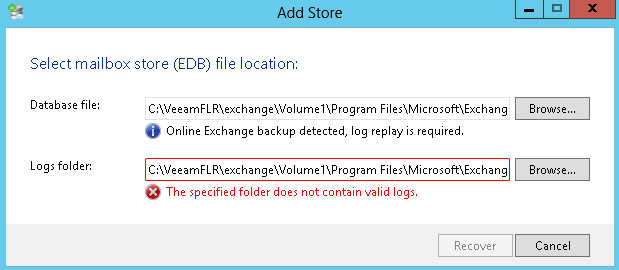
That's a question that came up on our internal forums. Well at first, it looks like it is not possible. You will get this kind of message:


Saying that you can't open the EDB because "Online Exchange backup detected, log replay is required".

So what can you do? Well first start a windows file level recovery of your exchange server.


This should mount the server disk under c:\veeamflr\exchange\ (depending on the vm name). Now start by extracting the eseutil to a defined directory on your Veeam server. By default you can find the tools and dlls under:
 c:\veeamflr\exchange\volume1\Program Files\Microsoft\Exchange Server\V15\Bin


Personally I just copied everything which starts with ese like so:
cp  "c:\veeamflr\exchange\volume1\Program Files\Microsoft\Exchange Server\V15\Bin\ese*" .

Alternatively you can also copy them from your  live exchange server.

Now let's query the DB by using eseutil and the /mh parameter like so:
PS C:\eseextract> .\eseutil.exe /mh "C:\veeamflr\exchange\volume1\Program Files\Microsoft\Exchange Server\V15\Mailbox\Mailbox Database 1821327848\Mailbox Database 1821327848.edb"


It shows that the db is in dirty shutdown, matching the description of the explorer. So let's hard repair it without logs.

Now here is the tricky bit. When you start File Level Recovery, a cache file will be made holding all writes under:
C:\Windows\system32\config\systemprofile\AppData\Local\mount_cache{}


The cache will be deleted automatically but it might mean that when you are repairing, it could grow filling up your whole c: drive. If you are not sure, copy the EDB to a second location where you will have plenty of space. Also you will see that the recovery process might need upto 2x the space of the original EDB. This is because it will create a TMP file to work on. So plan for that as well.

In my scenario, I kept the file on the original location but I specified that the TMP file should be on another drive. To recover use eseutil.exe /p (optionally specifying the /t parameter for  the TMP file)  :
PS C:\eseextract> .\eseutil.exe /p "C:\veeamflr\exchange\volume1\Program Files\Microsoft\Exchange Server\V15\Mailbox\Mailbox Database 1821327848\Mailbox Database 1821327848.edb" /t "E:\tmp\tmp.edb"


So it will give you an error that you might potentially loose data. However, remember we are reading the backup in readonly and redirecting writes to the mount_cache file so no harm done.


After some time it should get recovered. You can then validate it again with the /mh parameter like so:
PS C:\eseextract> .\eseutil.exe /mh "C:\veeamflr\exchange\volume1\Program Files\Microsoft\Exchange Server\V15\Mailbox\Mailbox Database 1821327848\Mailbox Database 1821327848.edb"


Your EDB should be in clean shutdown. Now open up the Veeam Explorer for Exchange from the start menu. (If you can't find it, it's under: "C:\Program Files\Veeam\Backup and Replication\ExchangeExplorer\Veeam.Exchange.Explorer.exe" by default)

Then push "add store" and point to your EDB which is under the original EDB path we used with eseutil. In my case:
C:\VeeamFLR\exchange\Volume1\Program Files\Microsoft\Exchange Server\V15\Mailbox\Mailbox Database 1821327848\Mailbox Database 1821327848.edb


For the log directory, point to the directory holding the edb. You should now be able to click open, and get it to work